
Walkie-Talkie
Use the walkie-talkie feature for real-time voice communication between instructor and student devices.
The walkie-talkie feature enables real-time voice communication between the instructor tablet and student devices. This allows instructors to communicate directly with students during a simulation without leaving their station.
Overview
The walkie-talkie icon appears on both the instructor and student interfaces:
- Instructor — walkie-talkie icon in the top-left toolbar area
- Student (Nurse Call screen) — walkie-talkie icon in the top-right corner
- Student (Nurse Station Overview) — walkie-talkie status icon on each patient card
- Student (Display Interfaces) — walkie-talkie icon on the left side of device displays (e.g., defibrillator)
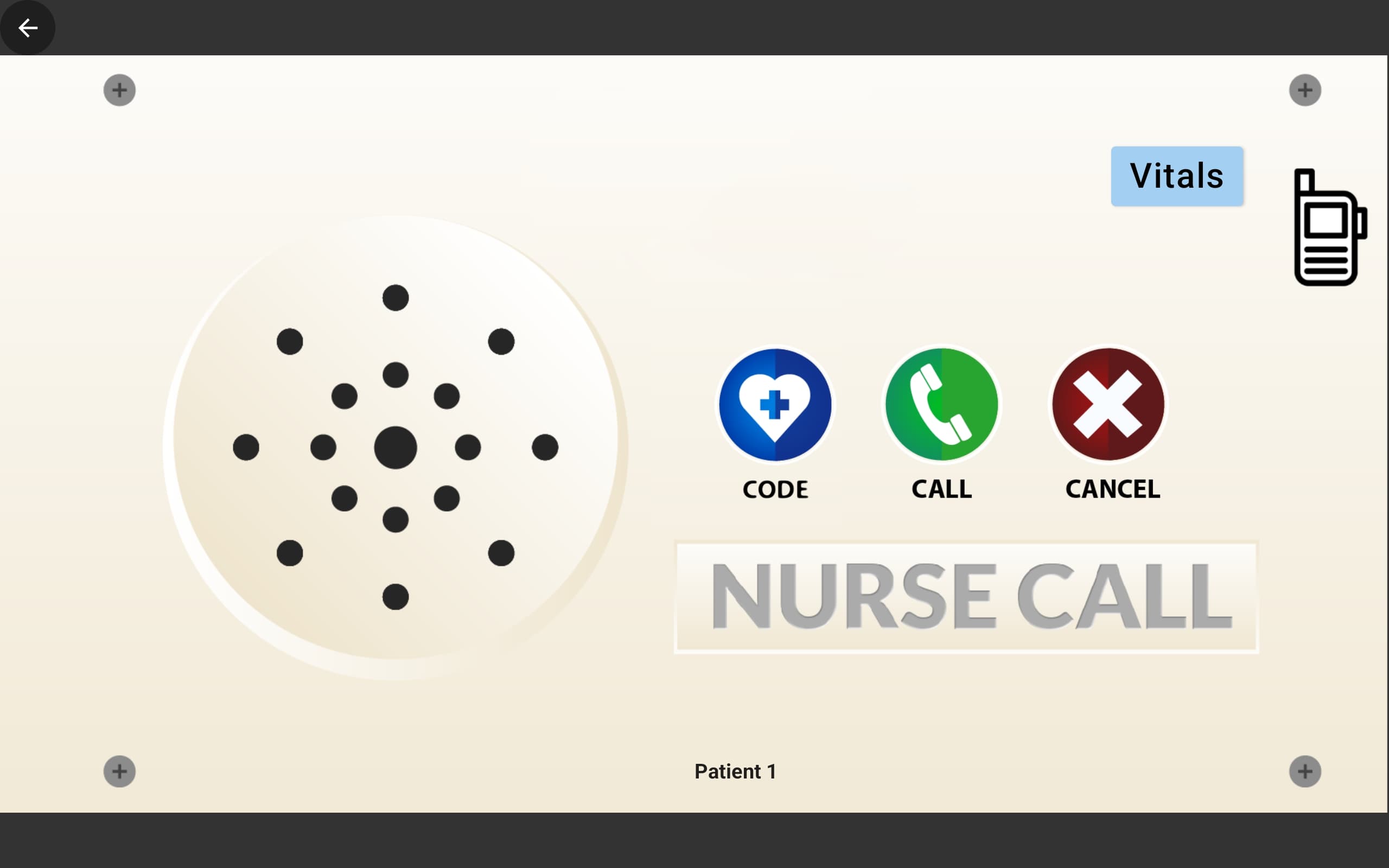
Using the Walkie-Talkie
Initiate Communication
Tap the walkie-talkie icon on either the instructor or student device to begin voice communication.
Monitor Connection Status
On the Nurse Station Overview, each patient card displays a green indicator next to the walkie-talkie icon when the connection is active.
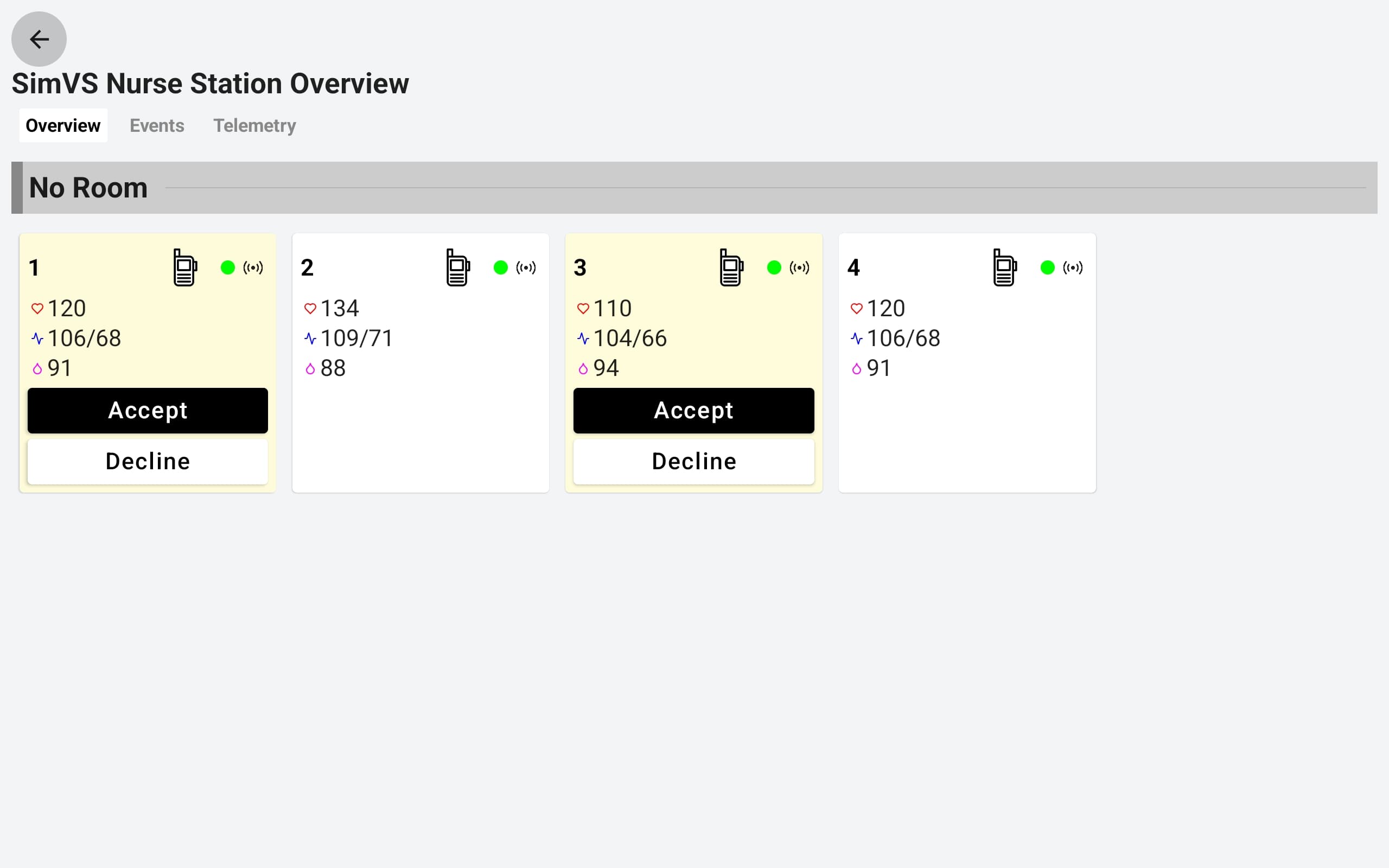
Where the Walkie-Talkie Appears
The walkie-talkie is accessible from multiple screens across the SimVS app:
| Screen | Location | Who Uses It |
|---|---|---|
| Instructor main screen | Top-left toolbar | Instructor |
| Nurse Call bell screen | Top-right corner | Student |
| Nurse Station Overview | Per-patient card icon | Student |
| Defibrillator display | Left side panel | Student |
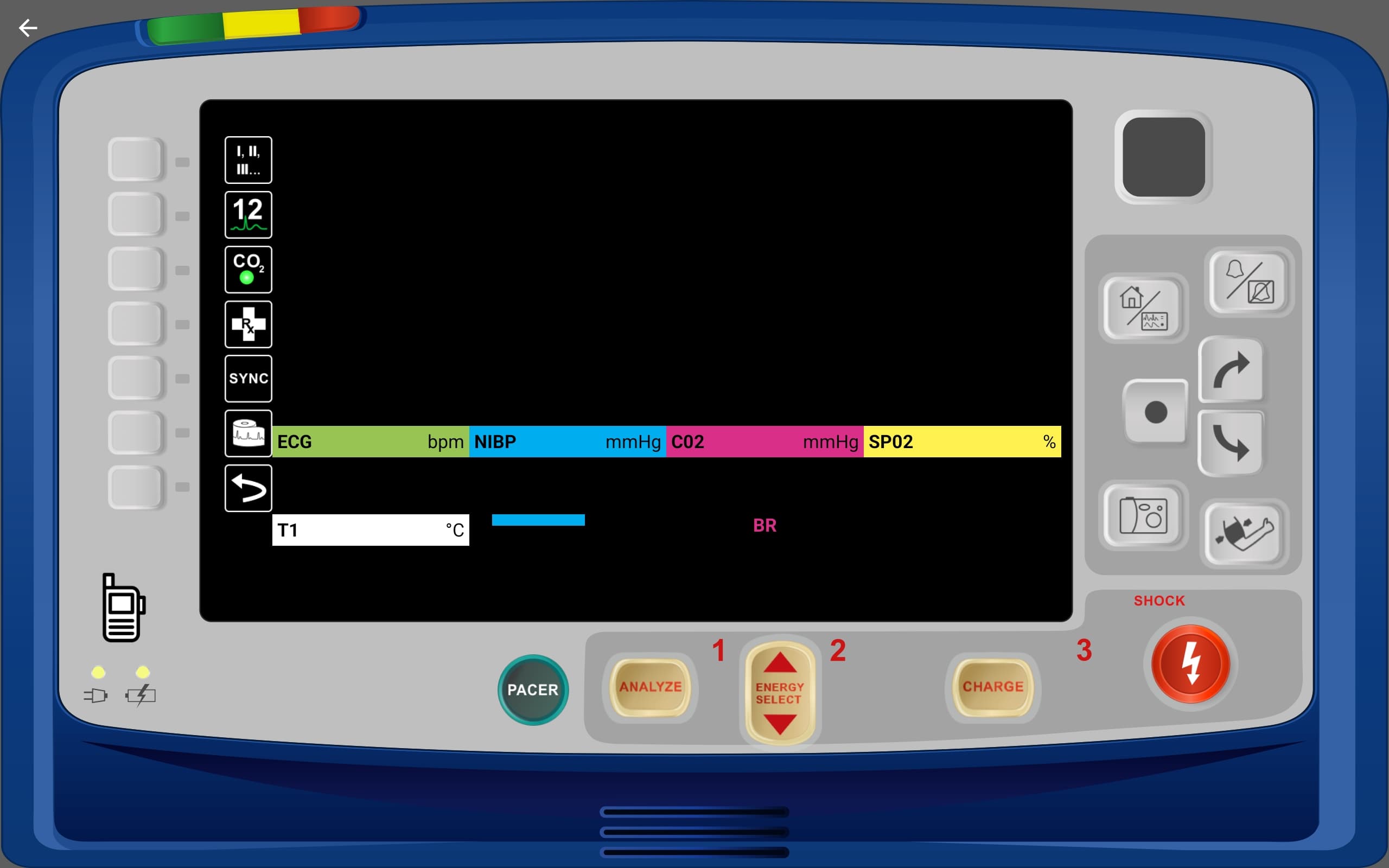
Tip
The walkie-talkie works alongside other features — you can communicate with a student while they are viewing any display interface, responding to alerts, or on the Nurse Call screen.