
App Installation
Download the SimVS app and enter your login credentials.
Install the SimVS app on all tablets and log in with your provided credentials. SimVS is available on both Android and iPad devices.
One app for every SimVS product
Hospital, IV, Nurse Station, and Nurse Call all use the same app. Its store name differs by platform: SimVS-IV on Google Play and SIMVS on the App Store. Install it even if you didn't buy the IV Series.
Download the App
Open the Google Play Store
On each Android tablet (both instructor and student), open the Google Play Store.
Google Account Required
A Google account is required to download apps from the Play Store. If the tablet does not already have a Google account signed in, you may need to create one or sign in with an existing account.
Search for "SimVS-IV"
Search for "SimVS-IV" in the Google Play Store. This is the SimVS app for all product lines, not only the IV Series. The app is published by SimVS and should be installed on all tablets in your package — both instructor and student devices.
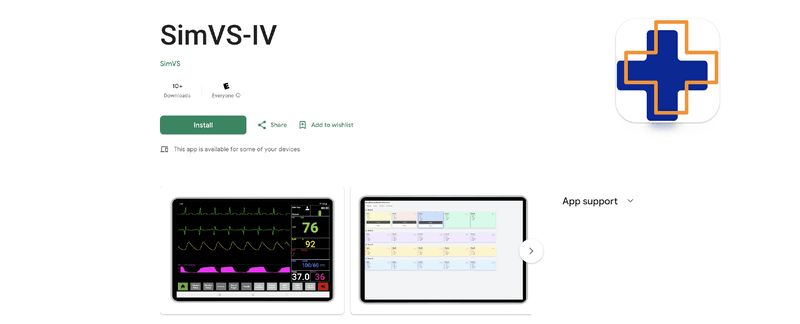
Install the App
Tap Install and wait for the download to complete. Repeat this on every tablet in your package.
Enter Login Credentials
After installation, open the SimVS app on each tablet. You will be prompted to enter login credentials.
Locate Your Credentials
Your credentials are provided by SimVS in your welcome guide or setup email. Each tablet has its own unique username. Here are some example formats:
| Field | Instructor Example | Student Example |
|---|---|---|
| Username | INSTITUTION-instructor-1 | INSTITUTION-student-1 |
| Password | Provided by SimVS | Provided by SimVS |
Your usernames may differ from the examples above. Some packages use product identifiers (e.g., INSTITUTION-NS-instructor-1) or other naming conventions. Refer to your welcome guide or setup email for your exact credentials.
Enter Credentials on Each Device
- Instructor tablets — use the instructor license credentials
- Student tablets — use the student license credentials
- Each student tablet should use a unique student username (e.g.,
student-1,student-2, etc.)
Verify Login
After entering credentials, the app will log in and display the Simulation Control screen. You should see either "SimVS Instructor" or "SimVS Student" at the top of the screen confirming the license type.
Can't Find Your Credentials?
If you don't have your login credentials, contact SimVS support at info@simvs.com or call 518-902-6156.
Next Step
With the app installed and all devices logged in, proceed to Device Pairing to connect your instructor and student tablets.