
Device Pairing
Pair your instructor and student tablets with a one-time session code.
The final step is to connect your instructor and student tablets so they can communicate during simulations. Tablets pair through the SimVS cloud server (Server Mode), so each tablet needs internet access.
Pair Your Tablets
Find the Session Code on the Instructor Tablet
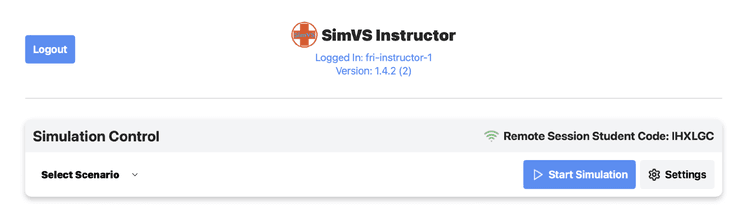
On the instructor tablet, look for the Remote Session Student Code displayed in the top-right corner of the Simulation Control area. This is a short alphanumeric code (e.g., IHXLGC).
Enter the Code on the Student Tablet
On the student tablet:
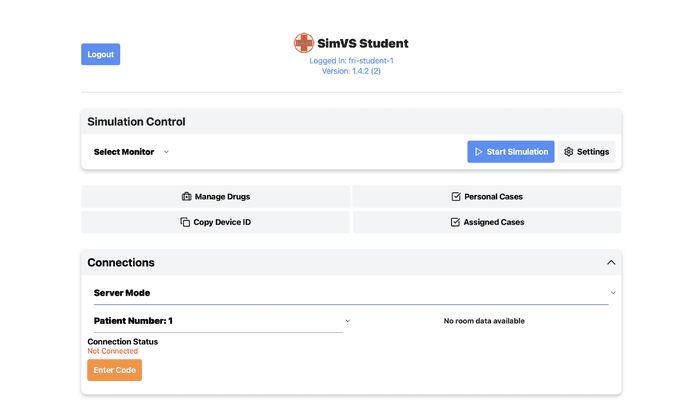
- Open the Connections section (below the Simulation Control area)
- Ensure Server Mode is selected
- Tap the Enter Code button
- Enter the code shown on the instructor tablet
Confirm the Connection
Once the code is entered, the devices will connect. The connection status will update to show the devices are paired.
The devices will now automatically reconnect whenever they have internet access — you only need to enter the code once.
For packages with multiple student tablets, repeat the process on each student tablet using the same instructor code.
No internet in your lab?
If your tablets can't get internet access where you run simulations, see Router Mode (Offline Setup).
You're All Set!
Your SimVS system is now set up and ready to use. To run an instructor-led simulation, select a scenario on the instructor tablet and a display interface on the student tablet, then tap Start Simulation on both the instructor and student tablets.
Run Your First Simulation
Continue with the guide for your product:
Hospital Series
Launch a monitor and start your first scenario.
IV Series
Choose your pump and follow a training video for your first infusion.
Nurse Station Series
Run a first session with the station display and a bedside tablet.
Nurse Call Series
Send call alerts and talk to learners.
For additional help or to schedule your SimVS Care onboarding session:
- Technical help: Email info@simvs.com. SimVS Care members may also use their Care phone and Zoom channels.
- Sales or onboarding scheduling: Call 518-902-6156.
- Website: www.SimVS.com