Router Mode (Offline Setup)
Run SimVS over a local network when your tablets can't get internet access in the lab.
Most labs should use the standard setup in Network Setup and Device Pairing. Use Router Mode only if your tablets can't get internet access where you run simulations. In Router Mode, tablets talk to each other directly over a local network instead of through the SimVS cloud server.
Connect to the internet once first
Each tablet must connect to the internet at least once to validate its license. After that, you can use Router Mode without internet. The easiest time is during setup, while you install the app and sign in.
What You Give Up
| Server Mode (standard) | Router Mode | |
|---|---|---|
| Internet required | Yes | Only once, to validate each license |
| Automatic reconnection | Yes | Yes |
| Automatic updates | Yes | No |
| SimVS Portal sync | Yes | No |
You can switch back to Server Mode at any time, even mid-session. We recommend switching back whenever internet is available so tablets get updates and Portal content.
Network Requirements
- All instructor and student tablets must be on the same local network.
- Any local network works. If your package includes a SimVS router, it gives you a ready-made one.
Institutional networks
Campus and hospital networks sometimes block tablets from talking to each other. If tablets on your institution's network won't connect in Router Mode, use the SimVS router, or contact SimVS at info@simvs.com or 518-902-6156 to discuss your network.
Set Up the SimVS Router
Skip this section if you're using your own local network.
Power On the Router
Plug the SimVS router into a power outlet and wait for it to start up.
Find the Network Name and Password
The WiFi network name and password are printed on the router's label.
Join the Network on Every Tablet
On each instructor and student tablet, open Settings → WiFi, select the router's network, and enter the password.
Pair Tablets in Router Mode
Enable Router Mode on All Devices
On both instructor and student tablets:
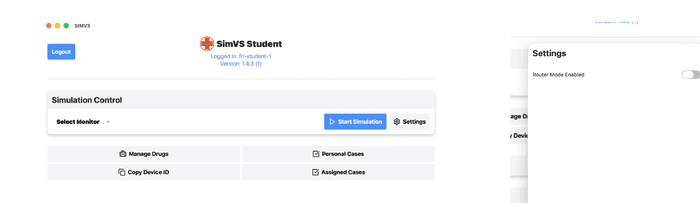
- Tap the Settings icon (next to "Start Simulation")
- Toggle Router Mode to enabled
Switch Connection Mode on the Student Tablet
On the student tablet:
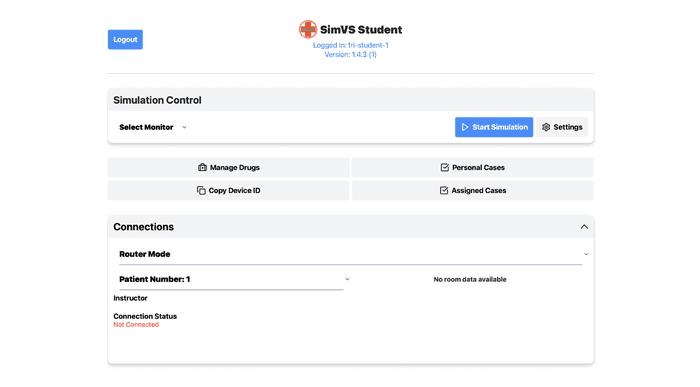
- Open the Connections section
- Select Router Mode from the connection mode dropdown (instead of "Server Mode")
Connect the Devices
Tap the Connect button on the student tablet. When connected, the button will change to show Disconnect.
Next Step
Your tablets are paired. Continue with Run Your First Simulation for your product.