Quick Start
Run a simple first Nurse Station session with an instructor device, Nurse Station display, and one bedside tablet.
This guide walks you through a simple first session with SimVS Nurse Station using three devices:
- 1x Instructor Tablet — controls the scenario and sends updates
- 1x Nurse Station Tablet — displays the central nurse station dashboard
- 1x Bedside Tablet — displays the bedside interface for one patient
For detailed setup instructions, see Setup & Connection.
Prerequisites
Before starting, make sure all three devices are paired to the same SimVS session. See Device Pairing.
Start The Nurse Station Tablet
Select The Nurse Station Monitor
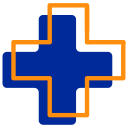
On the Nurse Station Tablet, open SimVS and use the Select Monitor picker to choose Nurse Station.
Start The Simulation
Tap Start Simulation to open the Nurse Station dashboard.
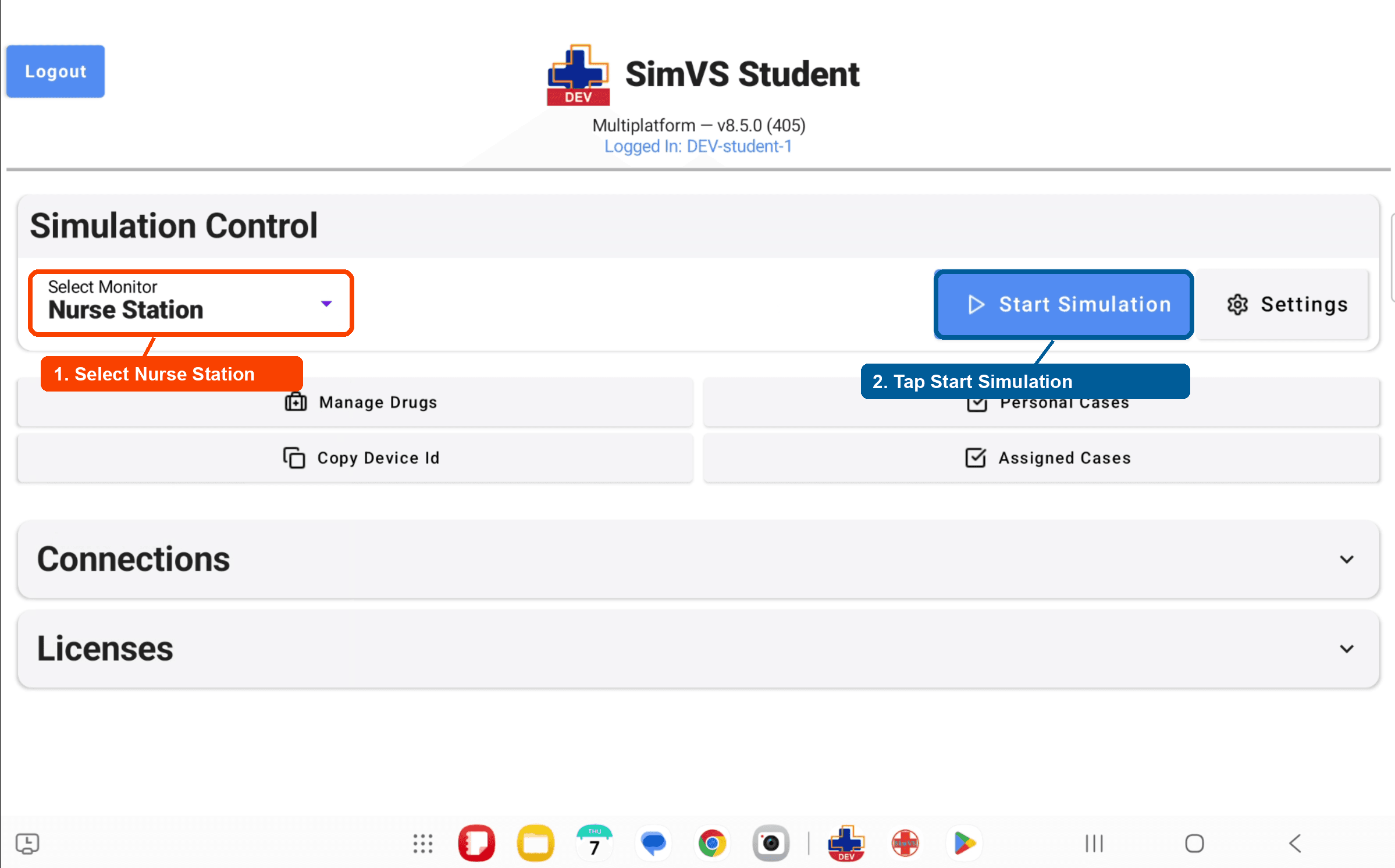
After the simulation starts, the Nurse Station dashboard opens. Before the instructor sends patient information, the dashboard may show an empty room state.
Set Up The Bedside Tablet
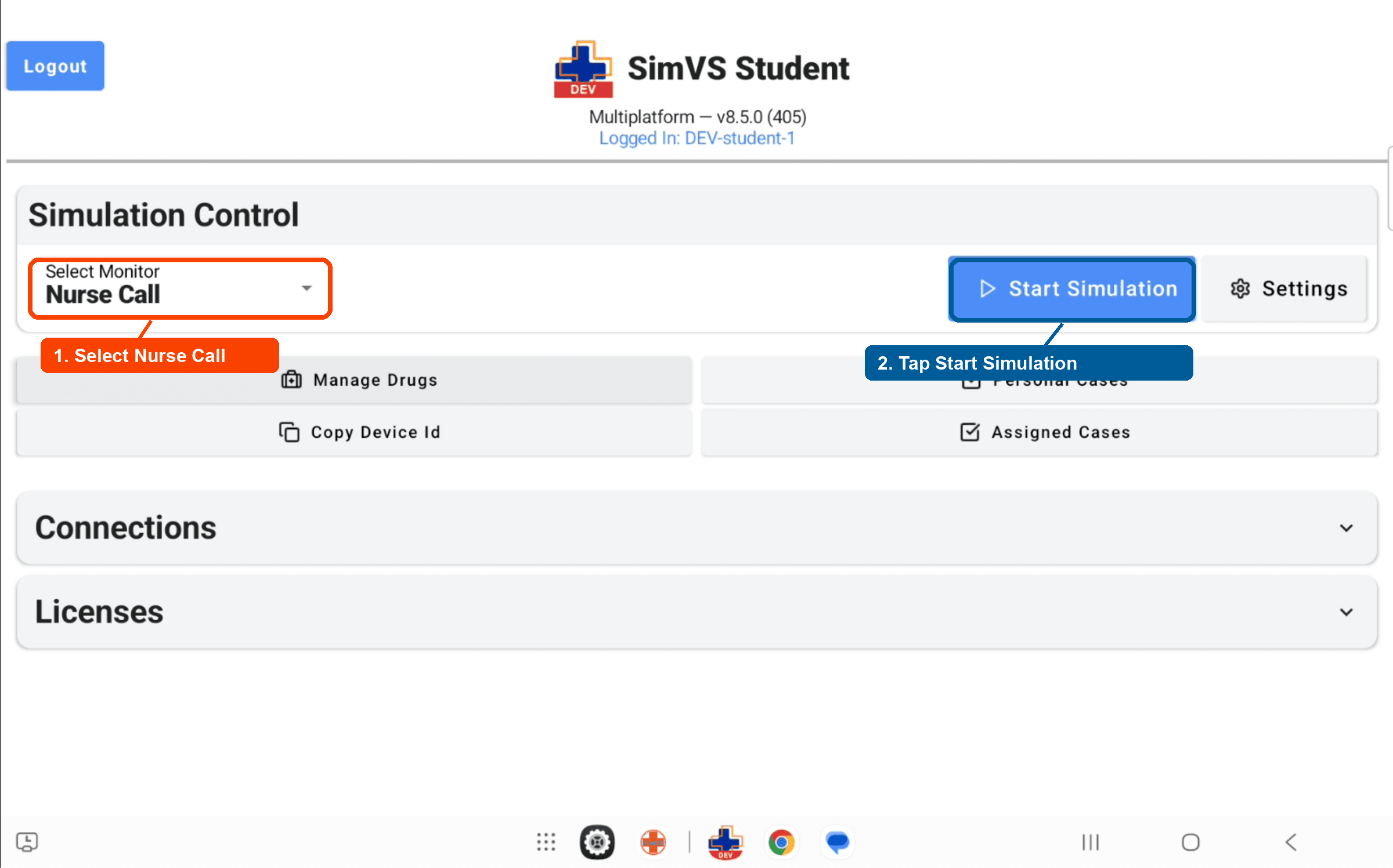
Select The Nurse Call Monitor
On the Bedside Tablet, open SimVS and use the Select Monitor picker to choose Nurse Call.
Start The Simulation
Tap Start Simulation to open the bedside Nurse Call interface.
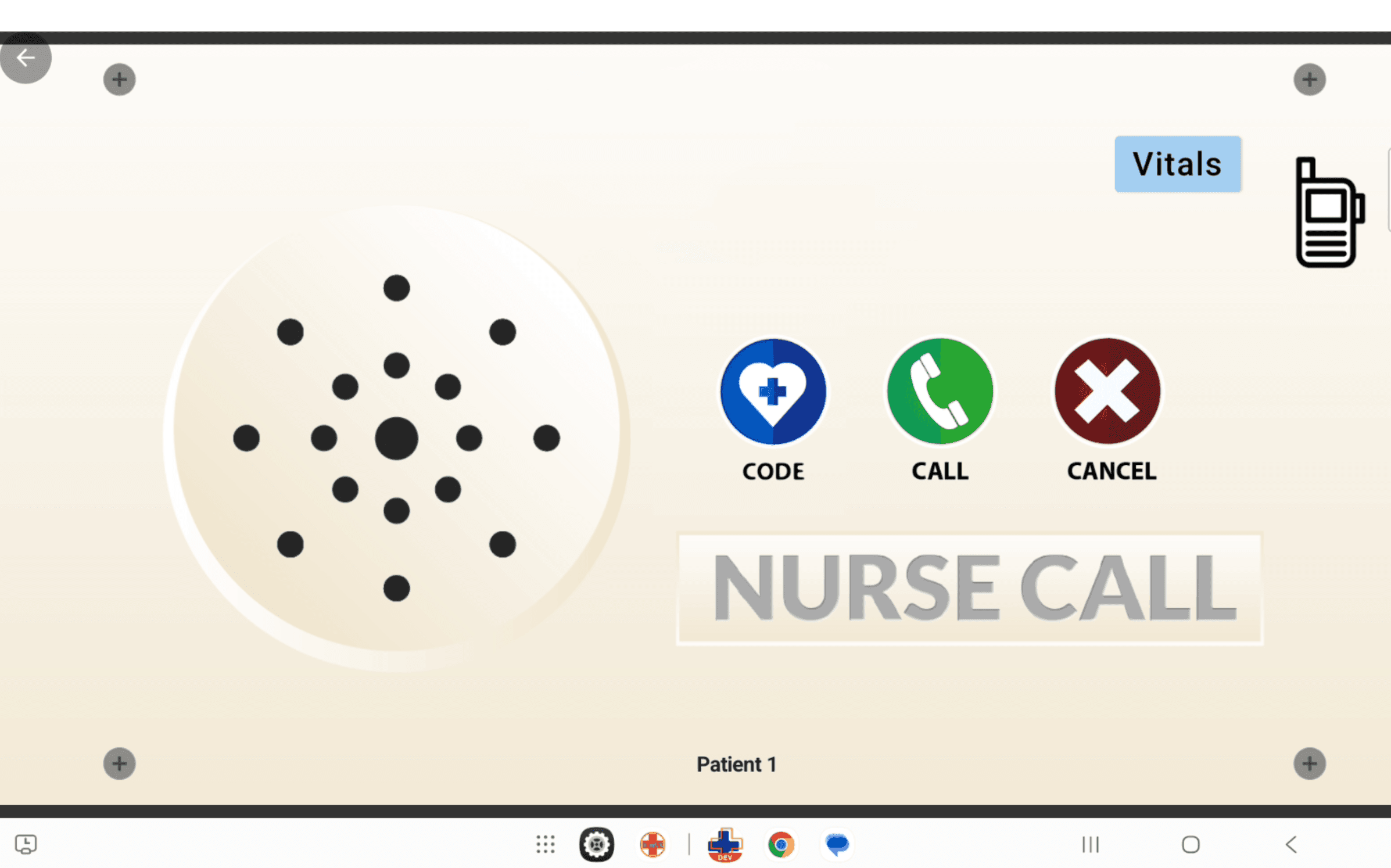
Before the instructor sends the first alert, the Bedside Tablet shows the Nurse Call interface ready for the learner.
Launch An On-The-Fly Scenario
On the Instructor Tablet, launch an on-the-fly scenario for the patient. This gives you direct control over the patient's physiology and alerts without needing to follow a pre-built scenario sequence.
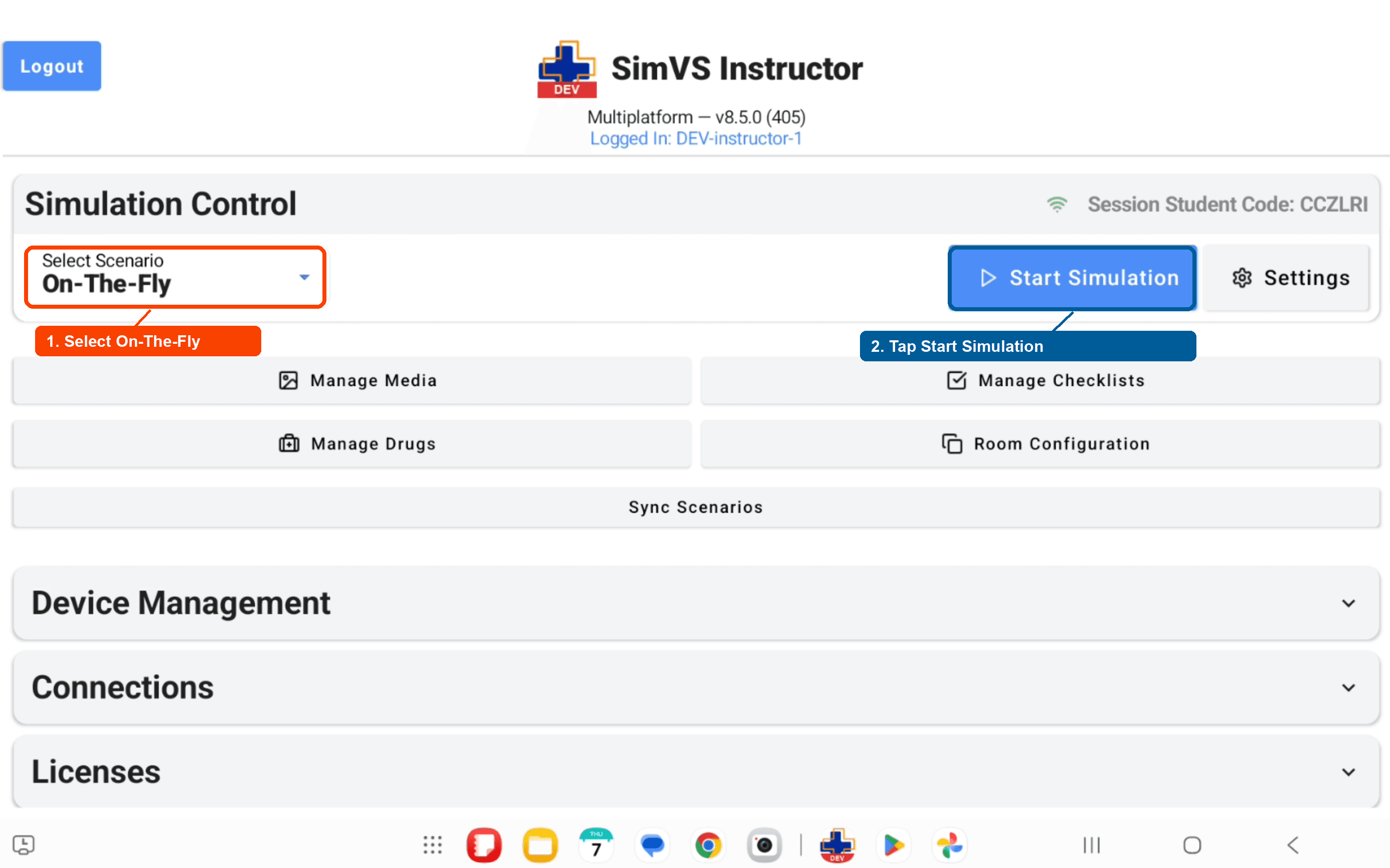
Select On-The-Fly
Use the Select Scenario picker to choose On-The-Fly.
Start The Simulation
Tap Start Simulation.
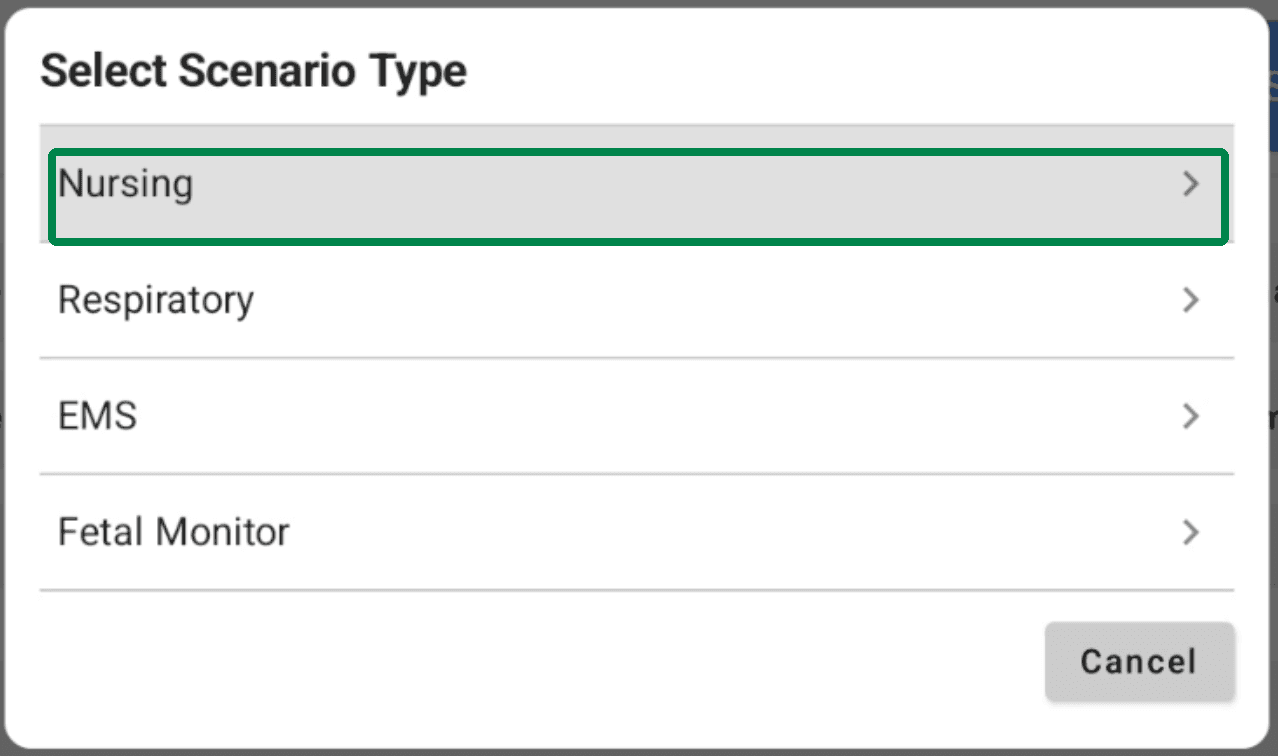
Select Nursing
When the scenario type popup appears, select Nursing.
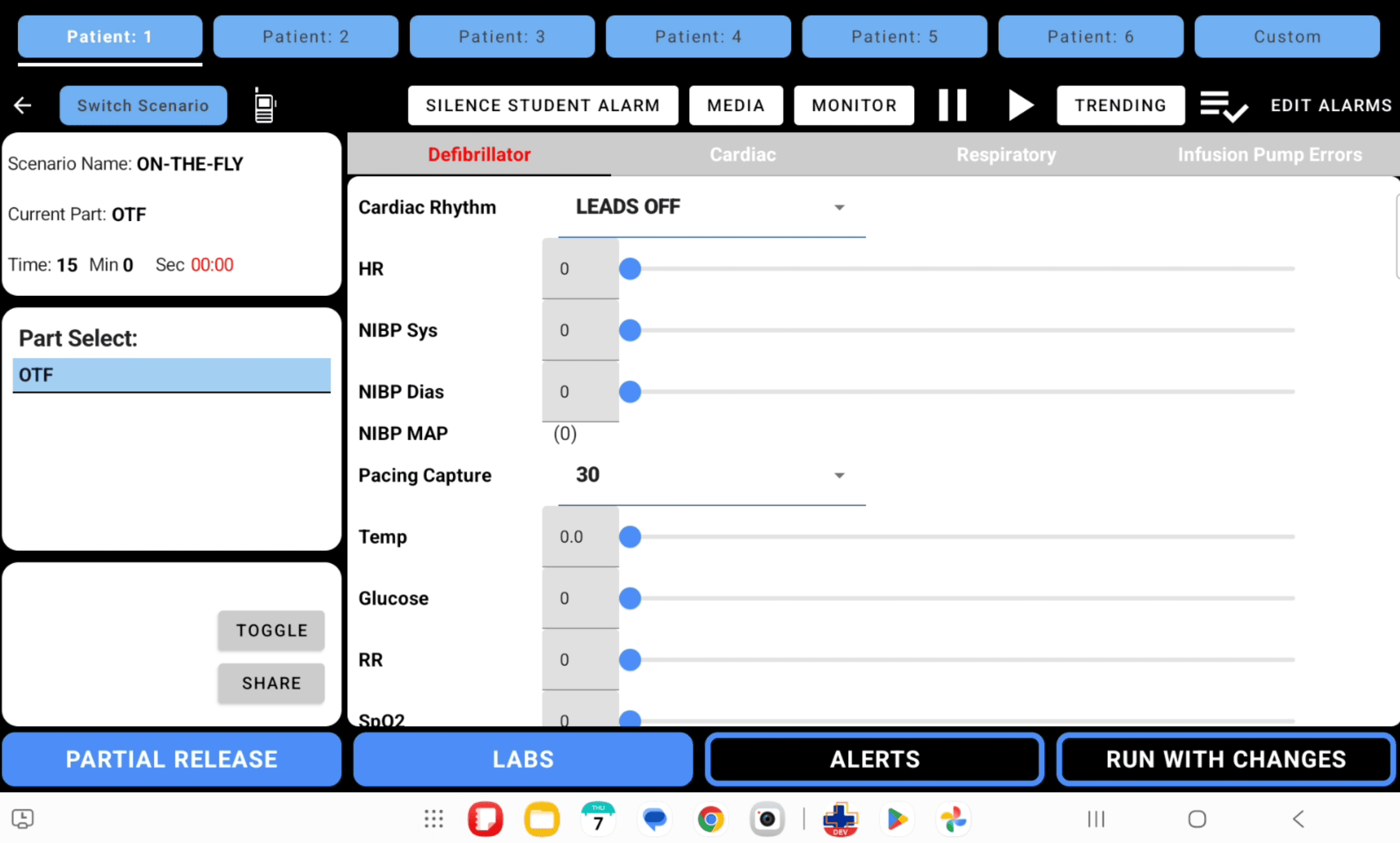
After the scenario launches, the Instructor Tablet opens the live control screen for the on-the-fly patient.
Send Initial Patient Physiology
Use the Instructor Tablet to set the patient's starting physiologic state.
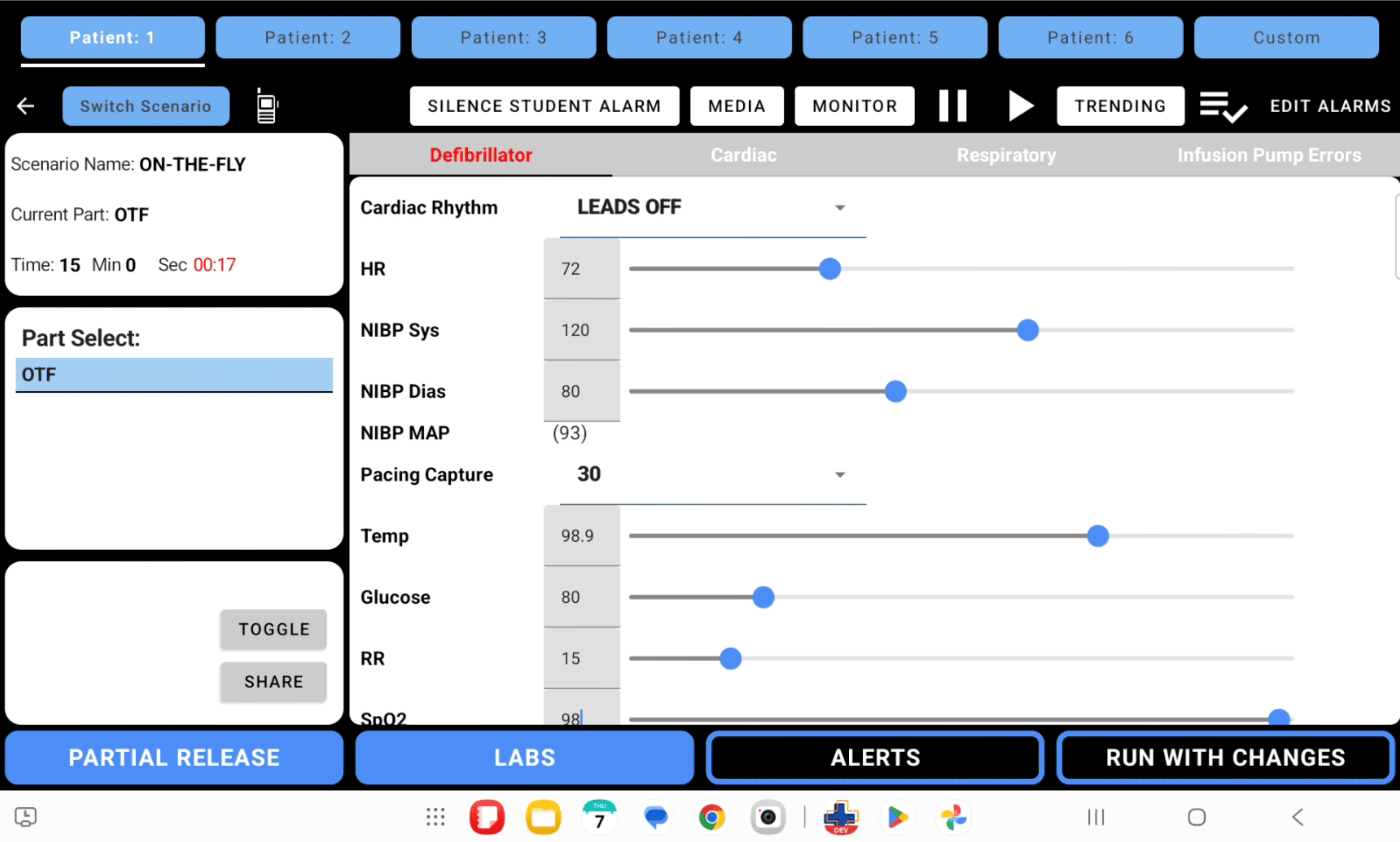
For this first session, set Patient 1 to a simple baseline state:
- HR: 72
- NIBP: 120/80
- Temp: 98.9
- Glucose: 80
- RR: 15
- SpO2: 98
After setting the values, tap Run With Changes to send the update to the Nurse Station.
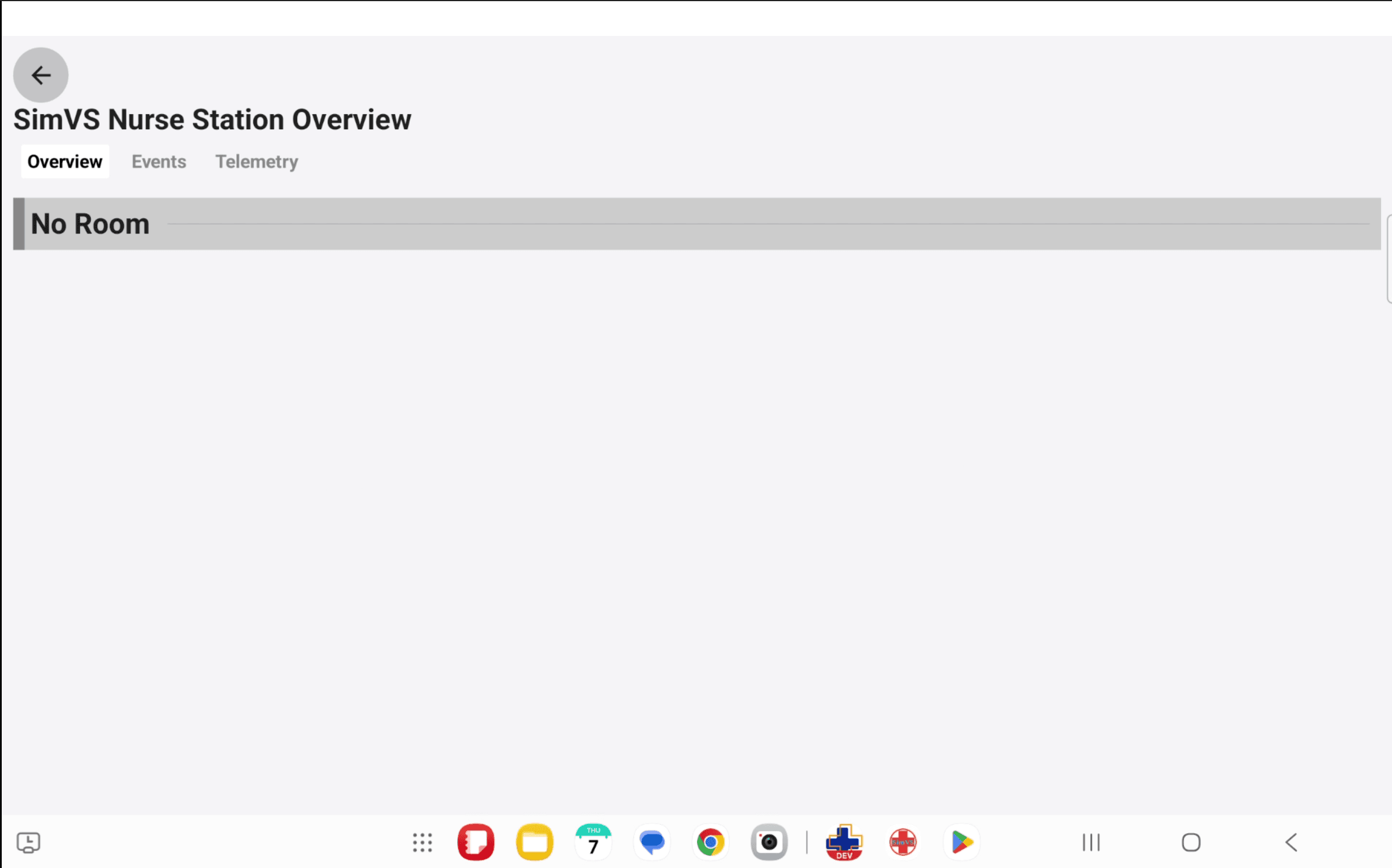
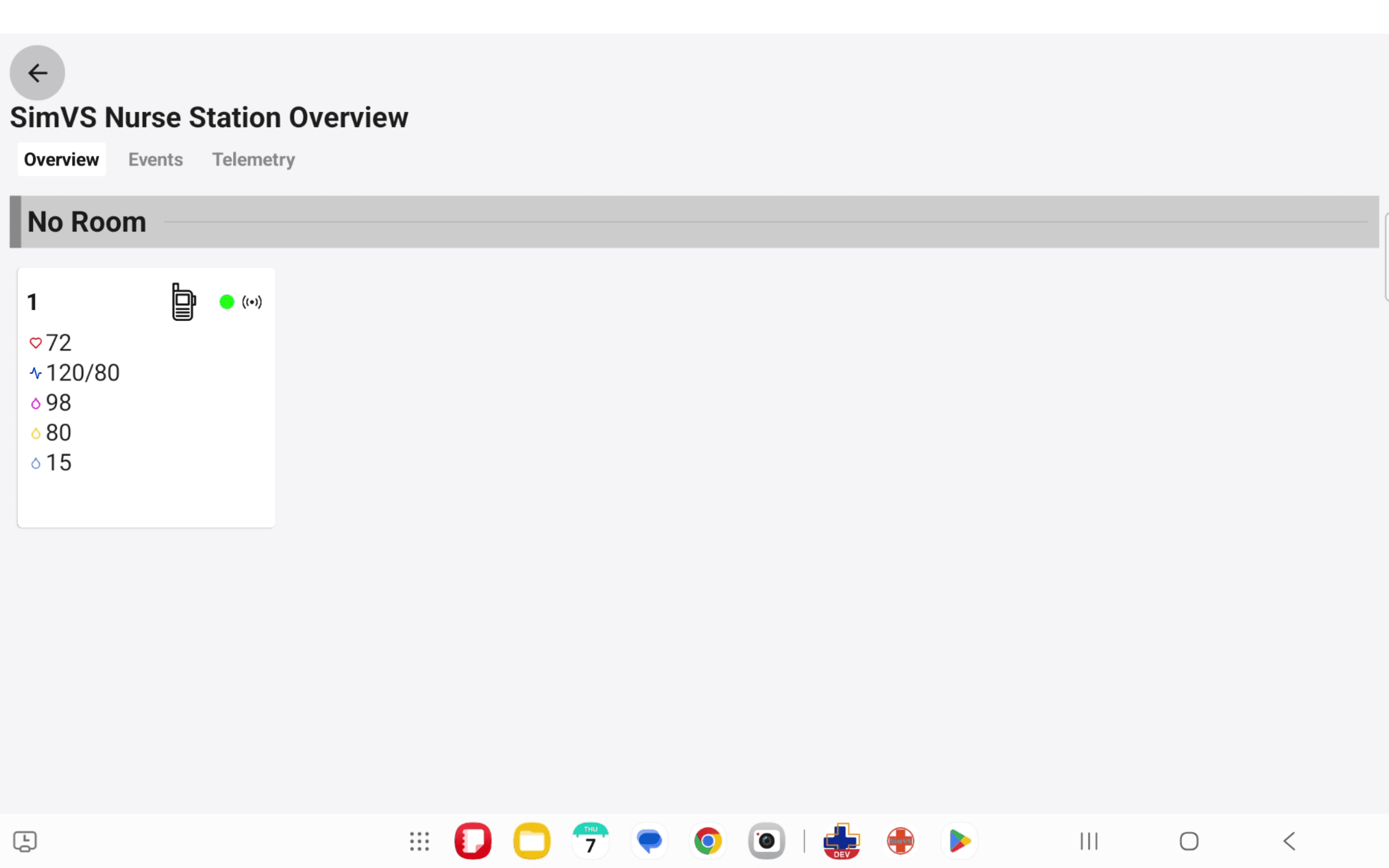
On the Nurse Station Tablet, confirm Patient 1 now appears with the updated physiology.
Send The First Alert
Next, send a Call Bell alert to Patient 1 and confirm the alert appears on the Nurse Station dashboard.
Open Alerts
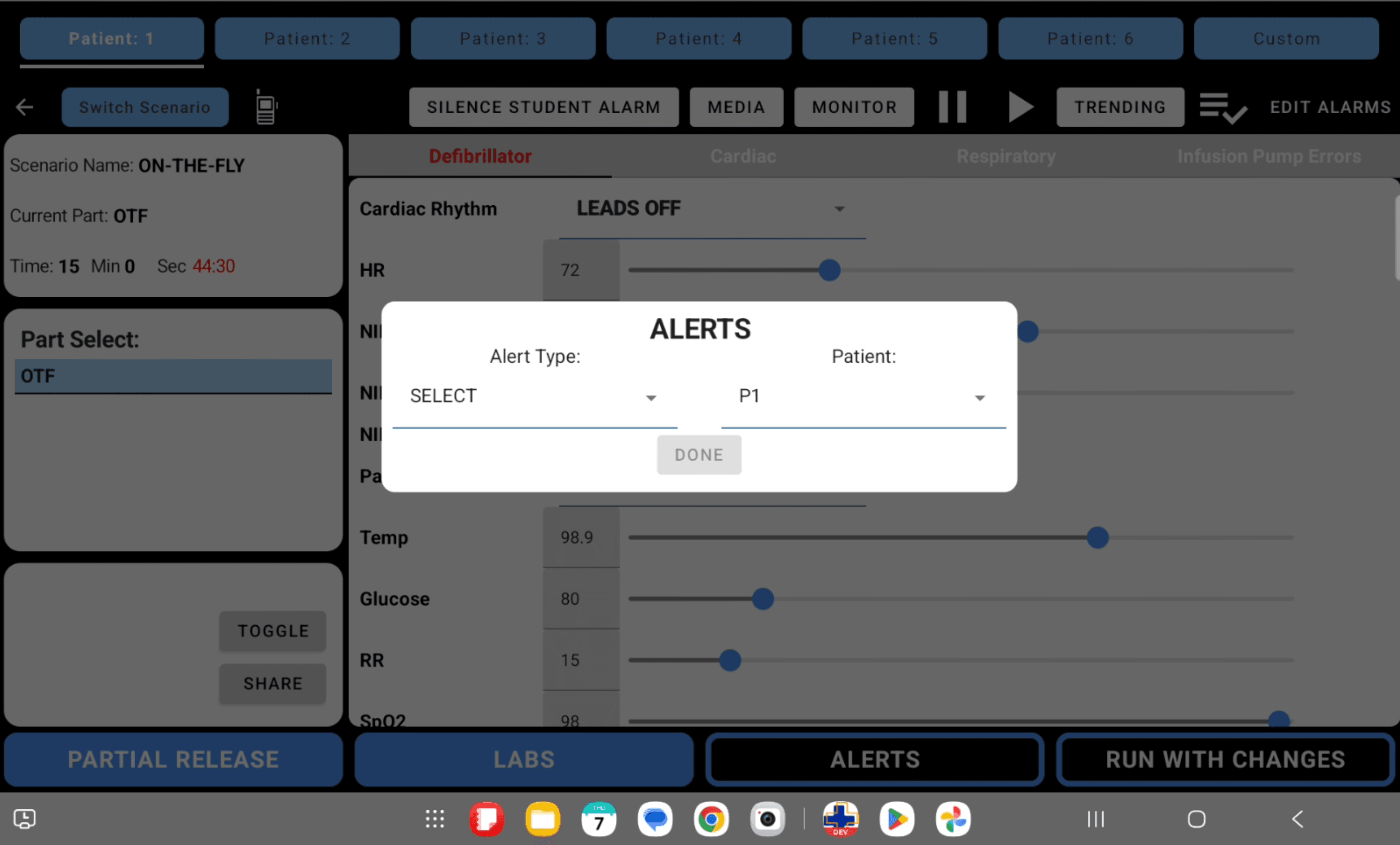
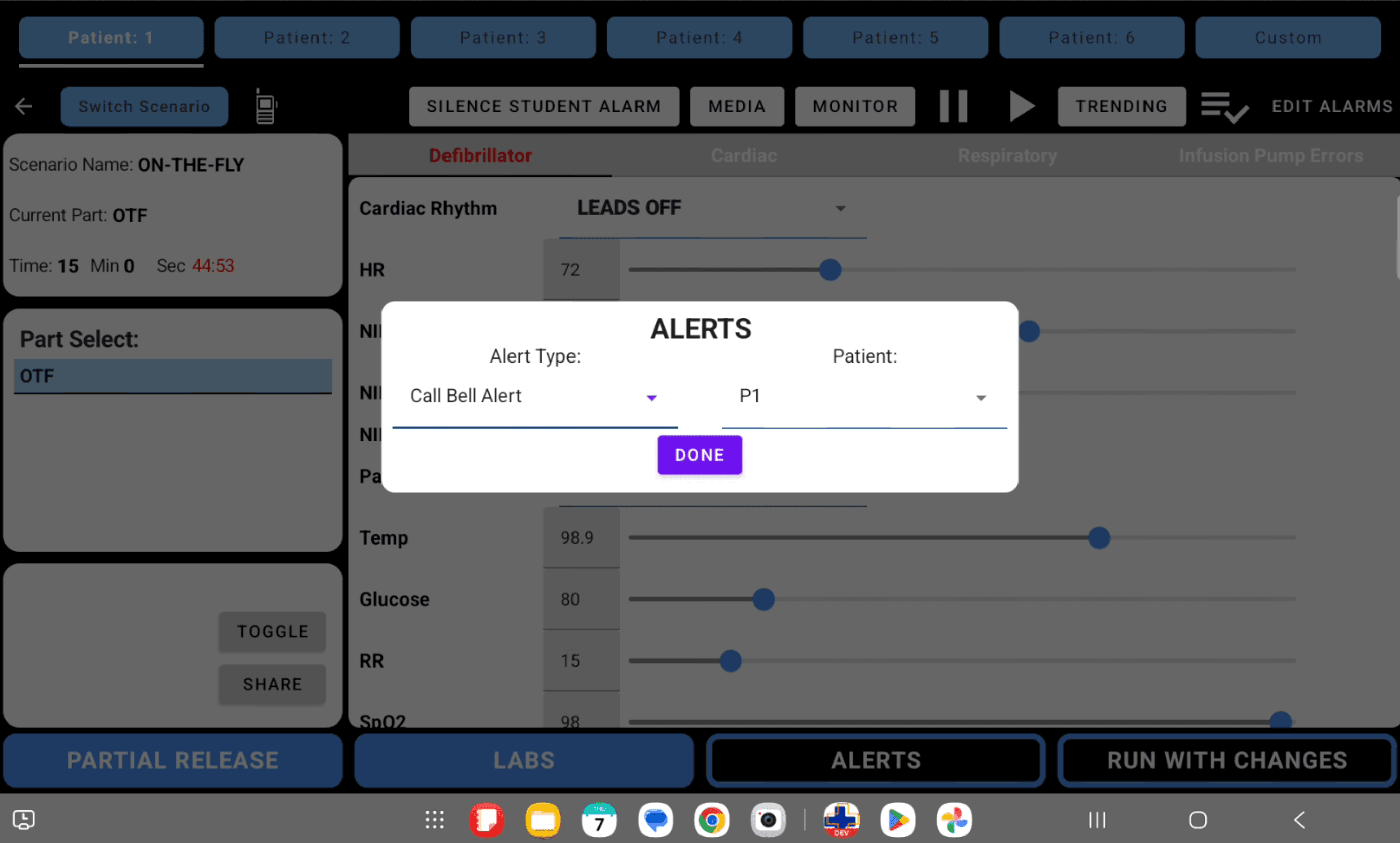
On the Instructor Tablet, tap Alerts to open the alert dialog.
Select Call Bell Alert
Set Alert Type to Call Bell Alert and leave Patient set to P1. When the Done button becomes active, tap Done.
Confirm The Nurse Station Alert
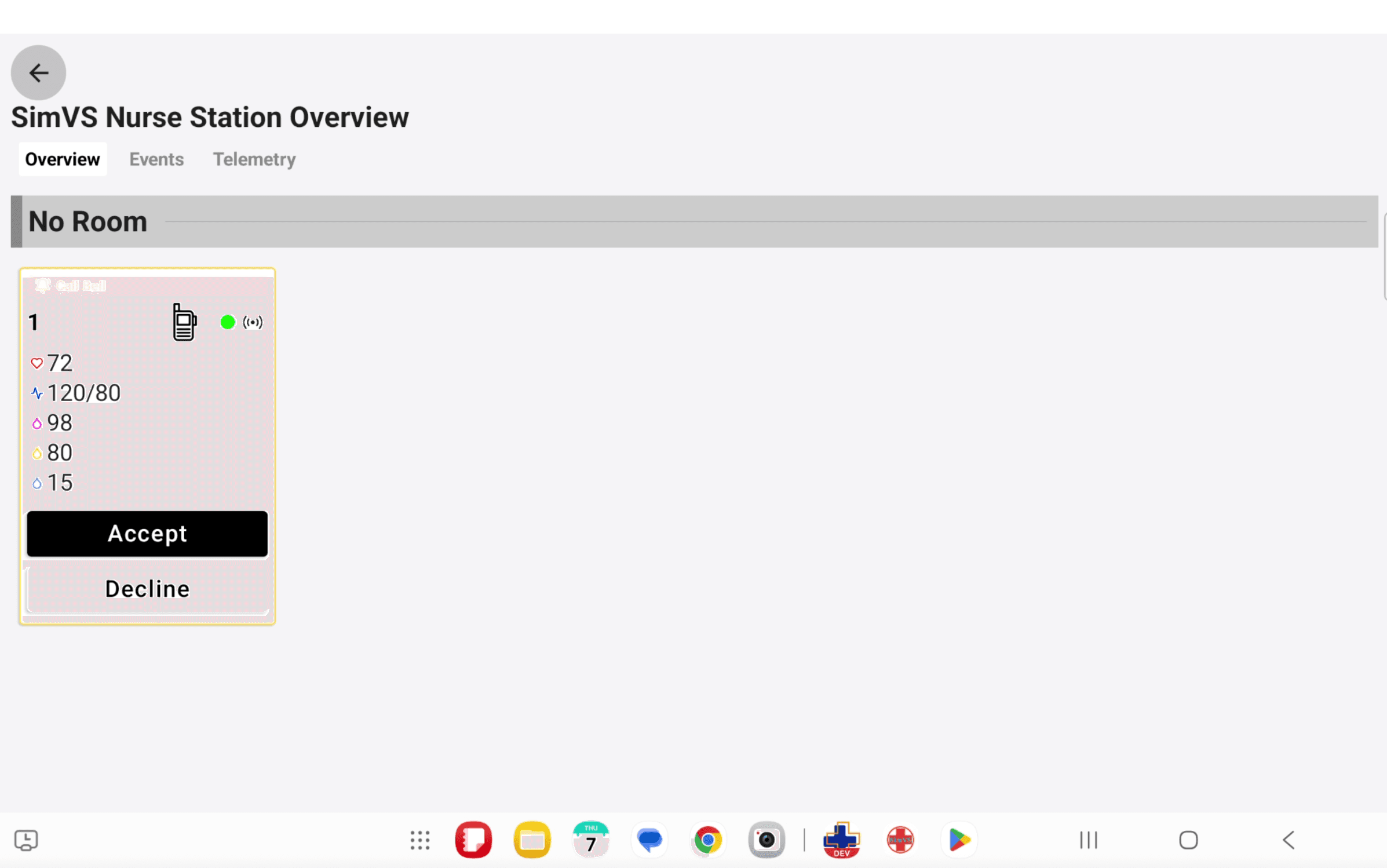
On the Nurse Station Tablet, confirm Patient 1 displays the Call Bell alert and response controls.
Confirm The Response Log
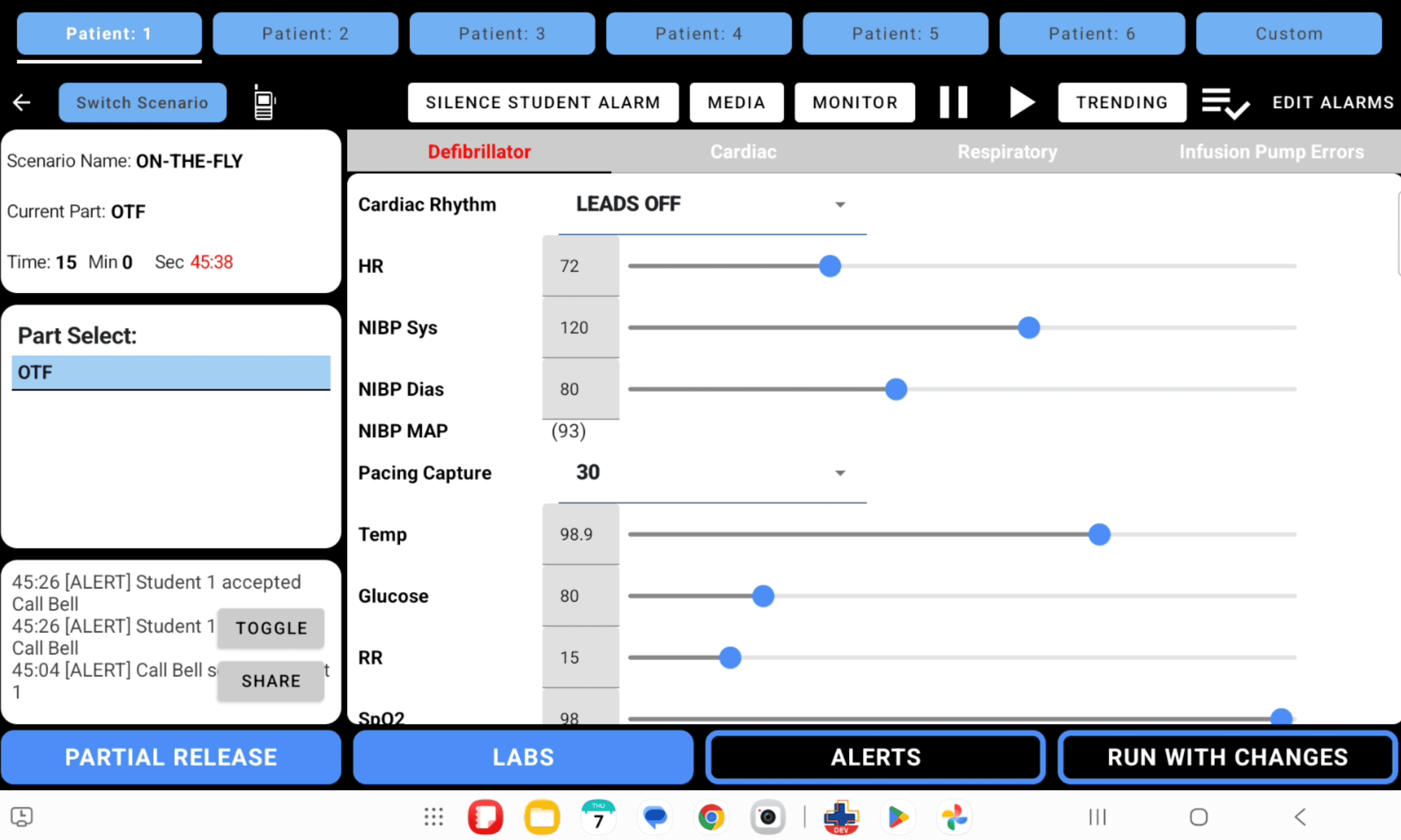
After the learner response is accepted, return to the Instructor Tablet and confirm the alert activity appears in the event log.
Send The Next Patient Update
After the first alert, add a second patient to confirm the Nurse Station can receive updates for more than one patient during the same session.
Select Patient 2
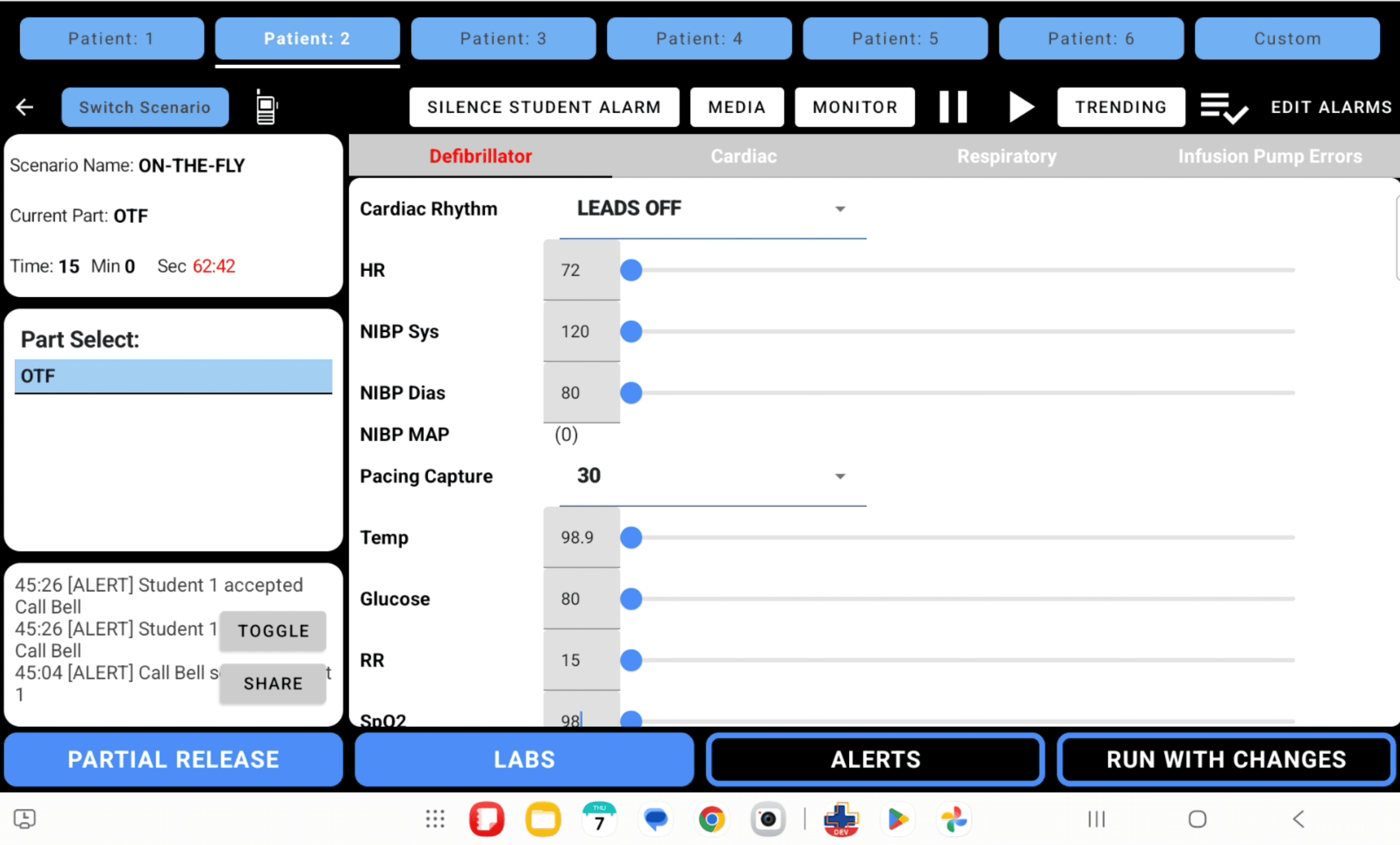
On the Instructor Tablet, select the Patient: 2 toggle at the top of the screen. This changes the live controls from Patient 1 to Patient 2.
Send Patient 2 Physiology
Set the Patient 2 values, then tap Run With Changes to send the new patient to the Nurse Station.
Confirm Patient 2 Appears
On the Nurse Station Tablet, confirm Patient 2 now appears next to Patient 1.