
Alerts & Responses
Send alerts from the Instructor Tablet and manage responses on the Nurse Station dashboard.
Use this workflow when the instructor needs to send an alert to a patient and confirm the response from the Nurse Station dashboard.
Send A Call Bell Alert
This example sends a Call Bell Alert to Patient 1. The same basic workflow applies when sending other alert types to other patients.
Open Alerts
On the Instructor Tablet, tap Alerts to open the alert dialog.
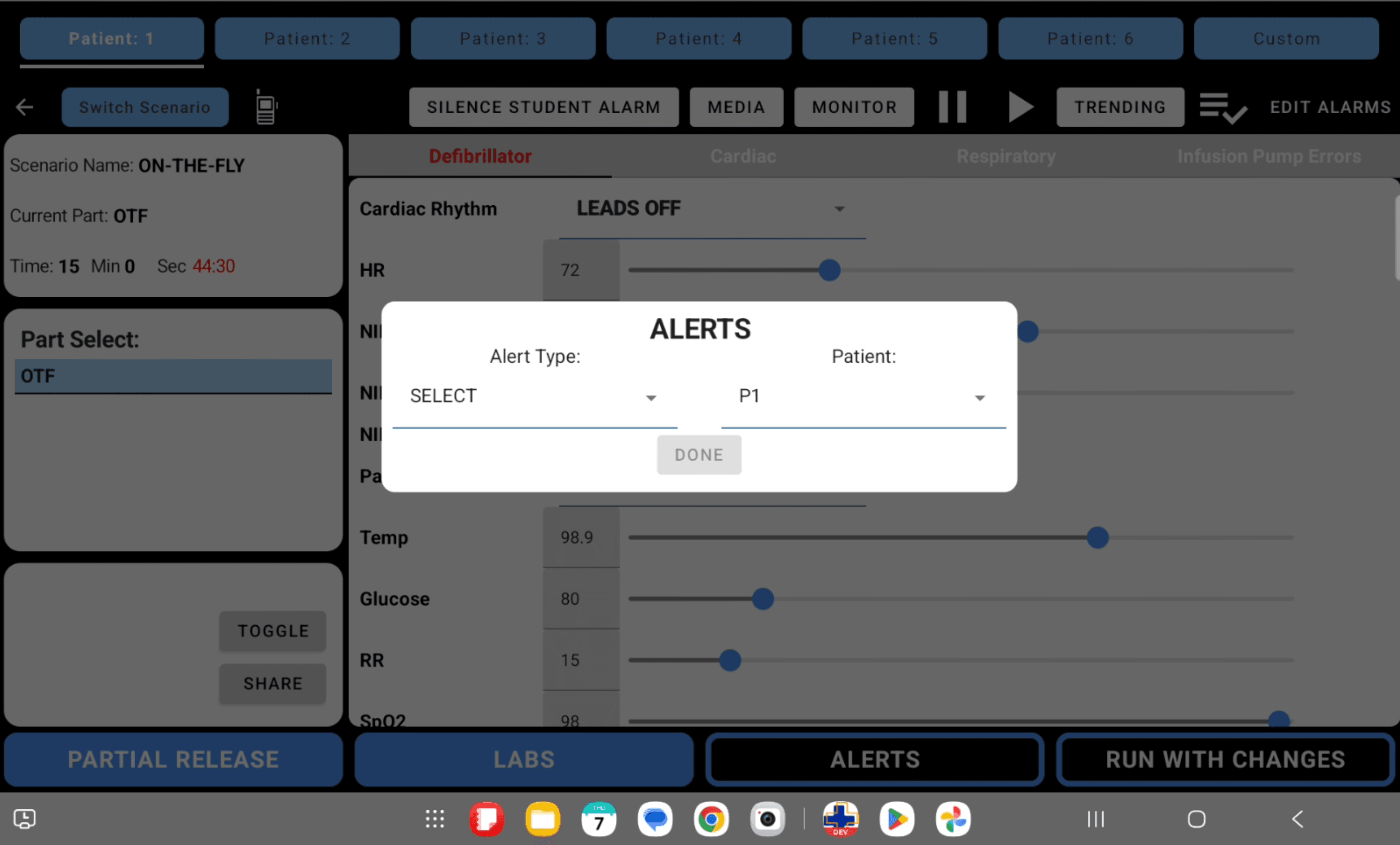
Select Alert Type And Patient
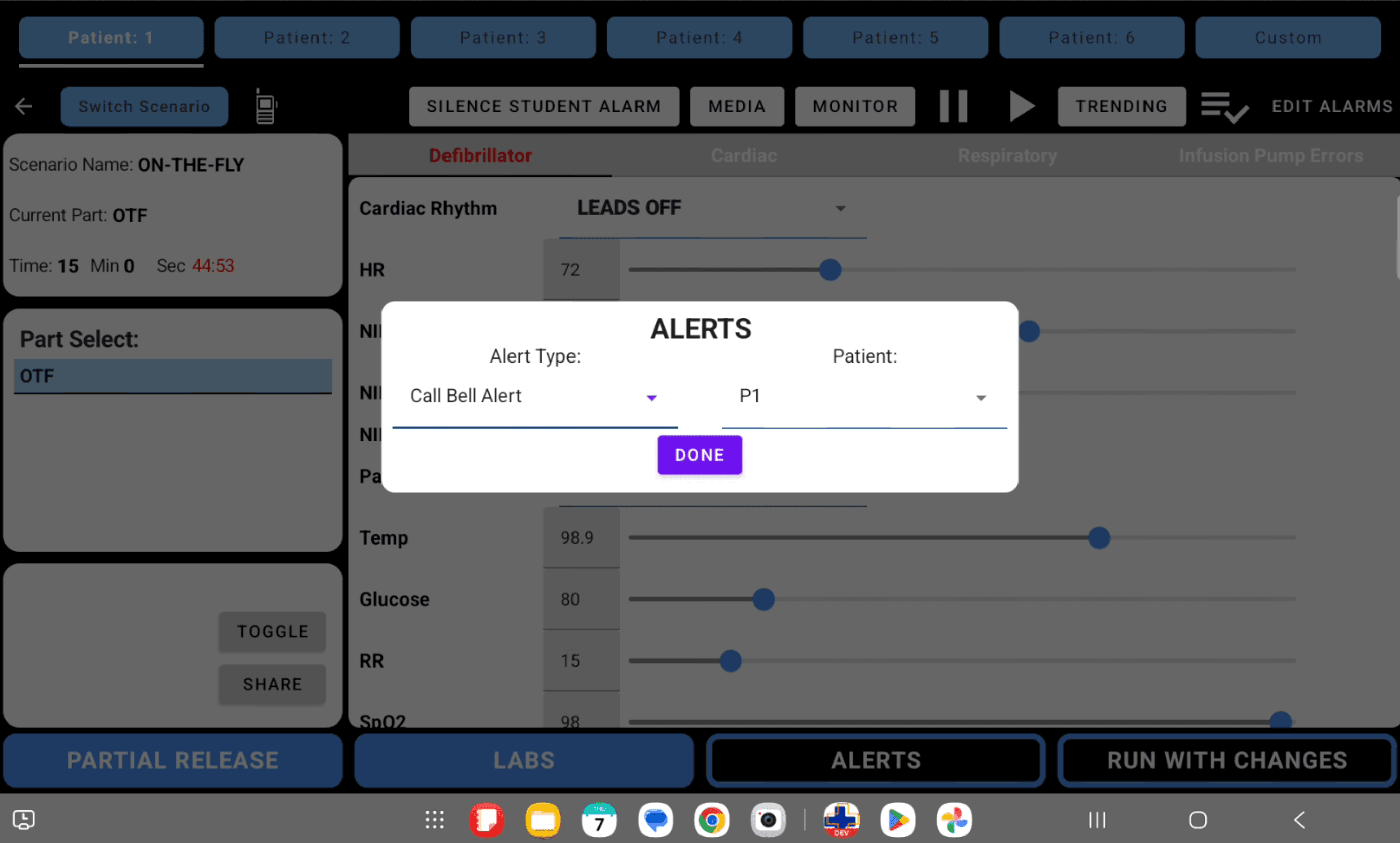
Set Alert Type to Call Bell Alert and choose the target patient. In this example, Patient stays set to P1.
When the Done button becomes active, tap Done to send the alert.
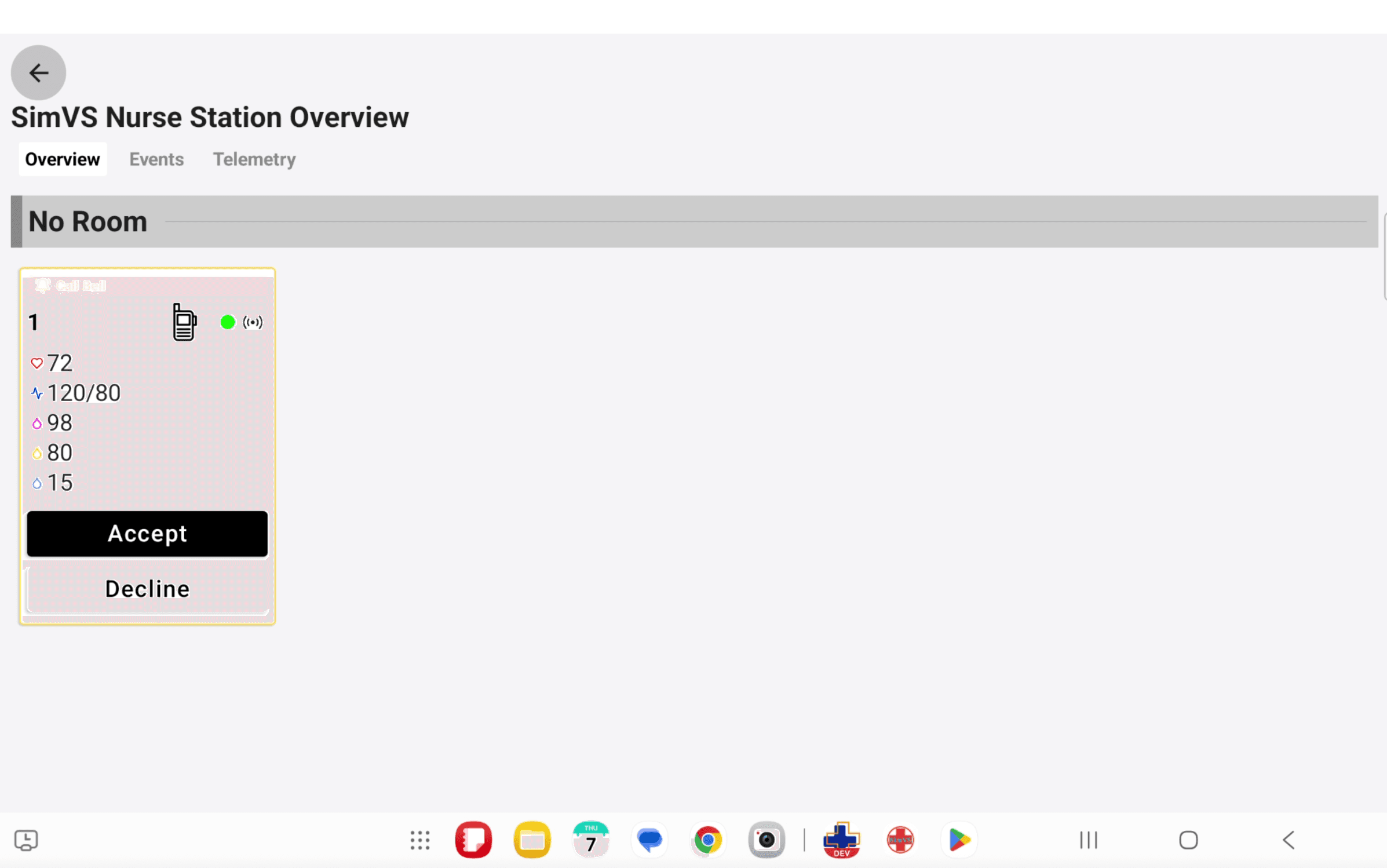
Respond On Nurse Station
On the Nurse Station Tablet, the patient card displays the active Call Bell alert. Use Accept or Decline to respond to the call.
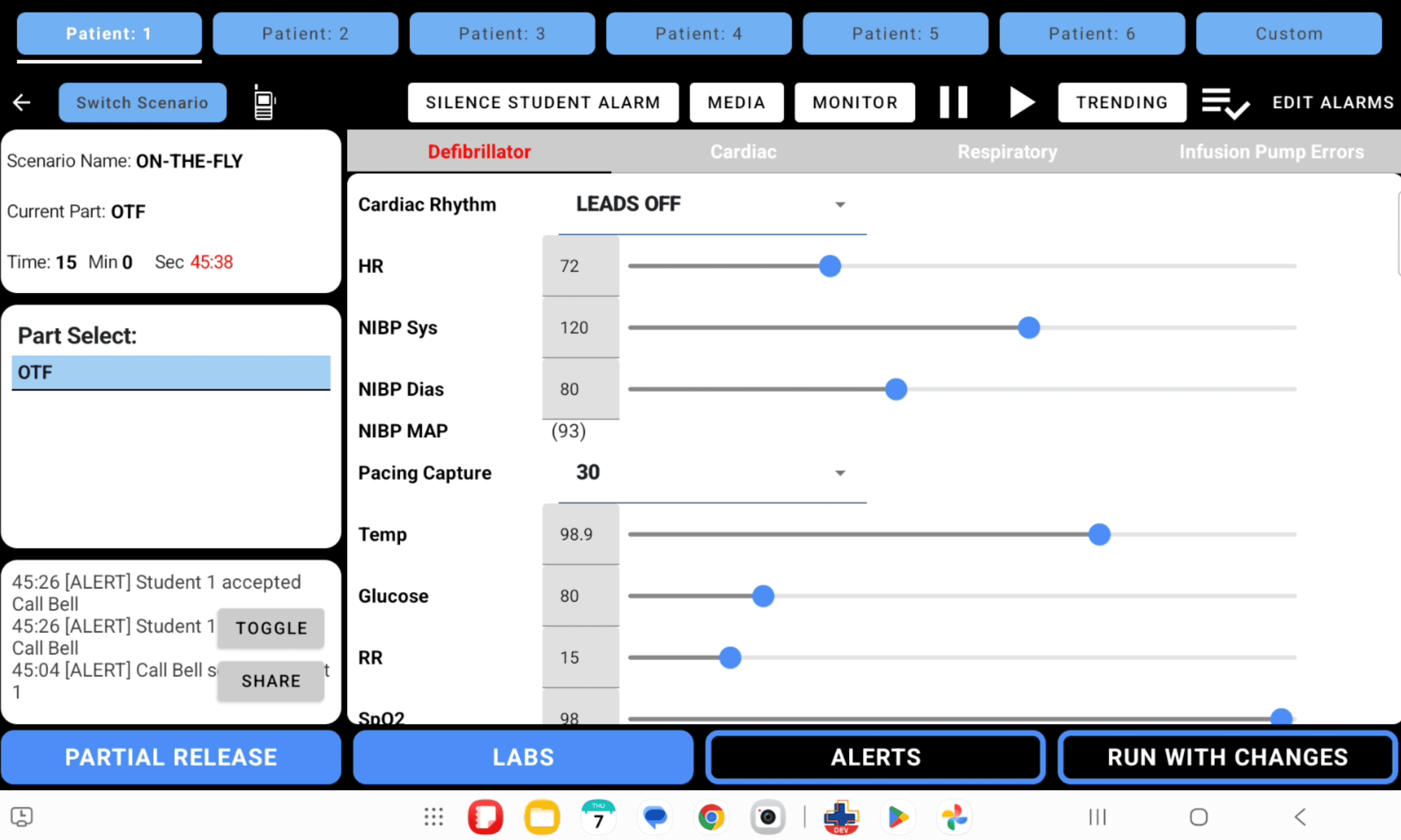
Confirm The Response Log
After the alert is accepted or declined, return to the Instructor Tablet and confirm the alert activity appears in the event log.
Operating Notes
- Use the Patient selector in the Alerts dialog to target the correct patient.
- Confirm the alert appears on the Nurse Station dashboard before continuing the scenario.
- Use the response log to verify whether the call was accepted, declined, or still pending.