PCA Mode
Step-by-step guide to Patient Controlled Analgesia (PCA) mode in SimVS-IV.
Patient Controlled Analgesia (PCA) allows patients to self-administer pain medication within programmed safety limits. The SimVS-IV PCA interface includes a touchscreen pump display and a handheld patient control device.
Before You Begin
Familiarize yourself with the Generic Pump Operations before using specific pump interfaces.
Starting PCA Mode
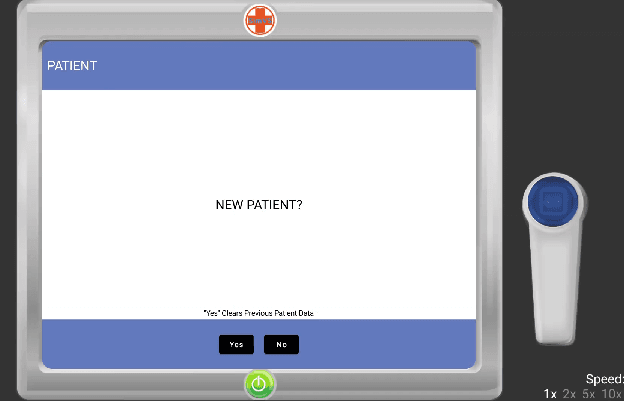
New Patient
The PCA interface displays a "NEW PATIENT?" prompt. Select Yes to clear previous patient data or No to continue.
Drug Select
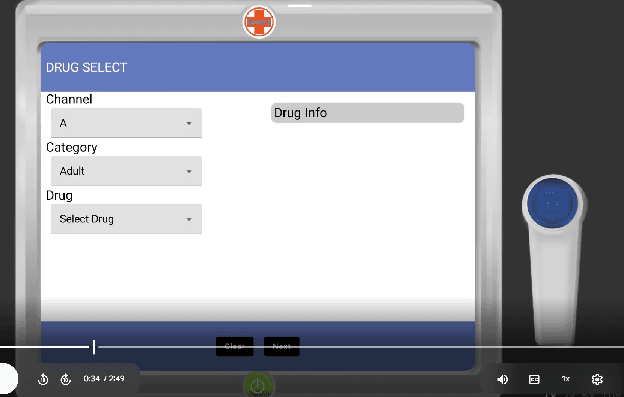
The Drug Select screen presents dropdown menus for:
- Channel — A (default)
- Category — Adult (default)
- Drug — Select from the drug library
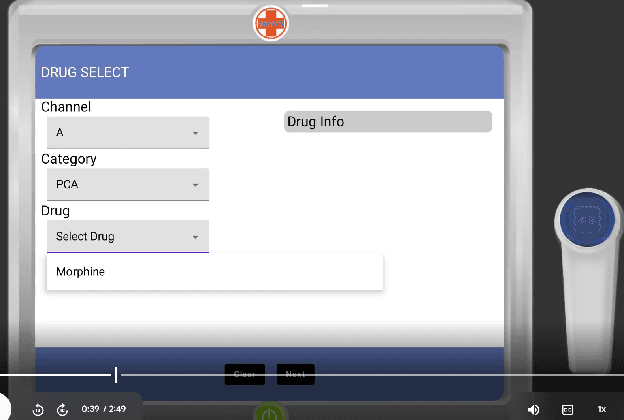
Select PCA Drug
Change the Category to PCA to see PCA-specific medications. For example, Morphine is a common PCA drug.
Press Next
After selecting the drug, press Next to proceed to the PCA Mode configuration screen.
Configuring PCA Parameters
The PCA Mode screen presents the following programmable fields:
| Parameter | Description | Example |
|---|---|---|
| Bolus Dose | Amount delivered per patient demand | 0.25 mg |
| Lockout Interval | Minimum time between doses | 0:10 (10 minutes) |
| Continuous Dose | Background continuous infusion rate | 0.5 mg/hr |
| Maximum Limit | Maximum dose allowed per hour or 4 hours | 2 mg/hr |
| Loading Dose | Initial one-time dose | 0 mg |
The Concentration is displayed at the bottom (e.g., 1.0 mg/mL).
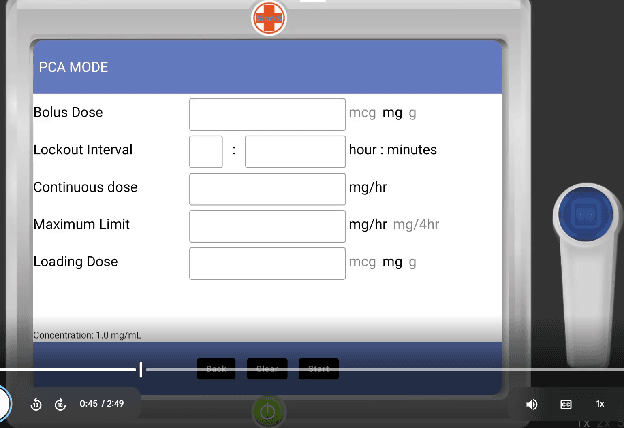
Enter Parameters
Fill in each field with the prescribed values. Use the unit selectors (mcg/mg/g) to set the appropriate unit for each parameter.
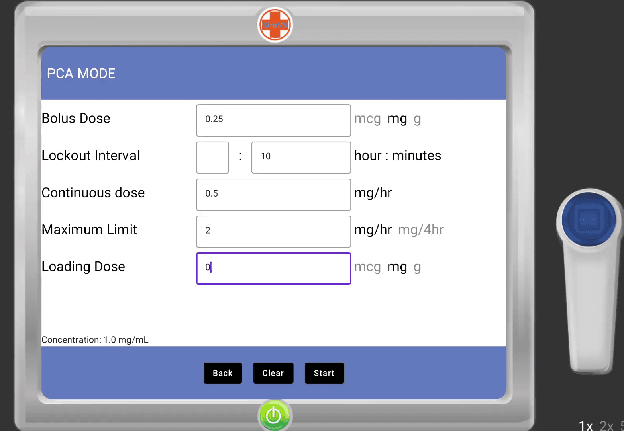
Press Start
Click Start to begin the PCA infusion. The Back button returns to drug selection; Clear resets all fields.
Patient Control Device
The PCA includes a handheld patient control device (shown to the right of the pump screen). The device has a single button that patients press to request a dose.
- Green indicator — the device is available; pressing the button will deliver a bolus dose
- Red indicator — the device is in lockout; the patient must wait before requesting another dose
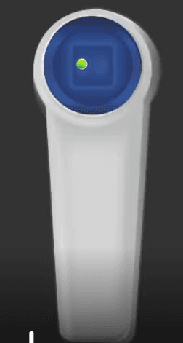
Lockout
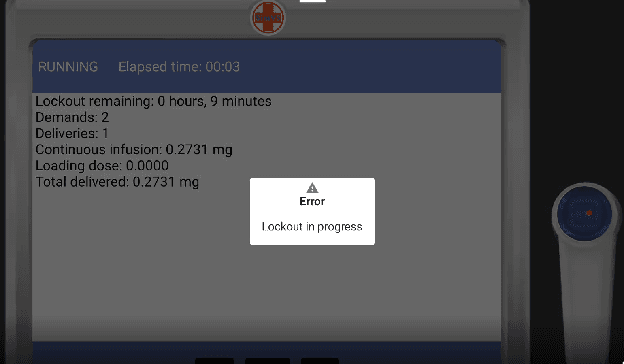
When the lockout interval is active, the running screen shows detailed status:
- RUNNING with elapsed time
- Lockout remaining — countdown until next dose is available
- Demands — total number of patient button presses
- Deliveries — actual doses delivered
- Continuous infusion — background rate
- Total delivered — cumulative dose
An "Error: Lockout in progress" message appears if the patient attempts to request a dose during lockout.