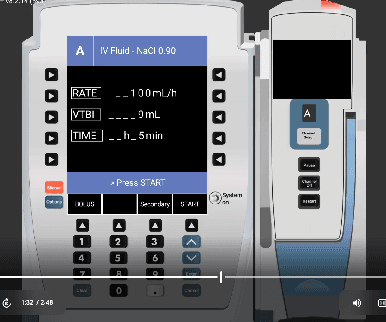
Alaris Pump Interface
Step-by-step guide to operating the Alaris pump simulator in SimVS-IV.
The Alaris simulator replicates the Alaris infusion system with channel-based programming and guardrail drug selection. It features a familiar blue-toned interface with physical button navigation.
Instructor and Simulation Technician Deep Dive
For a complete instructor-and-learner walkthrough, including connection checks, scenario setup, action logs, checklists, pump errors, and drug-library customization, watch the full deep dive.
Before You Begin
Familiarize yourself with the Generic Pump Operations before using specific pump interfaces.
Starting the Alaris Pump
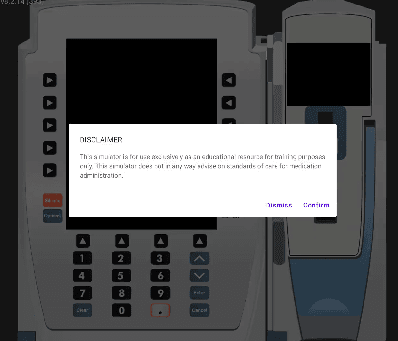
Accept the Disclaimer
When the pump powers on, a disclaimer dialog appears. Read the disclaimer and tap Confirm to proceed.
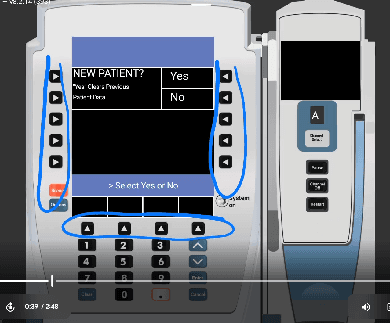
New Patient Prompt
The pump asks "NEW PATIENT?" — select Yes to clear previous patient data and start fresh, or No to continue with existing data.
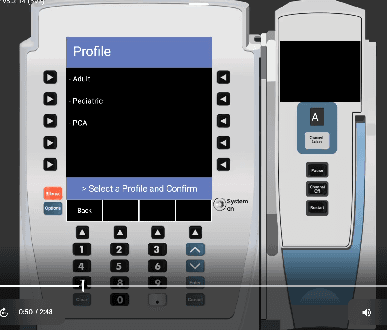
Select a Profile
Choose the patient profile: Adult, Pediatric, or PCA. Select the profile and confirm.
Select Channel
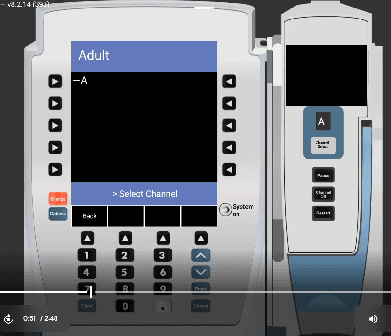
The Alaris supports multiple channels. Select channel A to begin programming. The prompt reads "> Select Channel".
Selecting a Drug
Choose Infusion Type
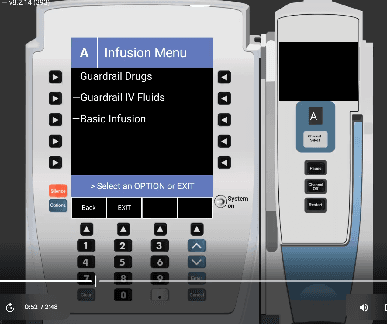
The Infusion Menu presents three options:
- Guardrail Drugs — drugs with safety guardrails configured
- Guardrail IV Fluids — IV fluids with guardrail limits
- Basic Infusion — manual rate/volume entry without guardrails
Browse Medications
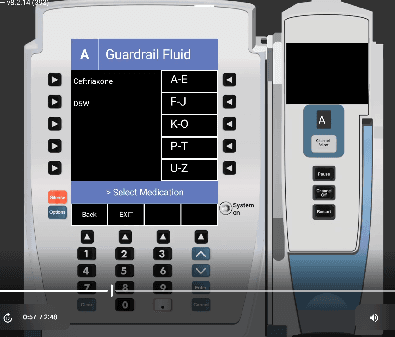
When selecting Guardrail IV Fluids, medications are organized alphabetically in groups (A-E, F-J, K-O, P-T, U-Z). Navigate to the appropriate group and select your medication.
Confirm Selection
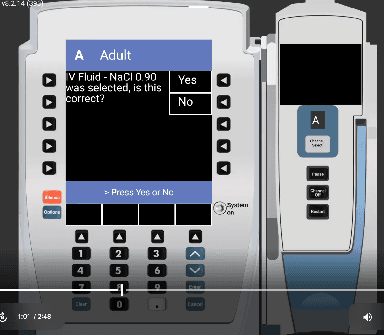
After selecting a medication (e.g., IV Fluid - NaCl 0.90), the pump asks for confirmation. Press Yes to confirm or No to go back.
Programming the Infusion
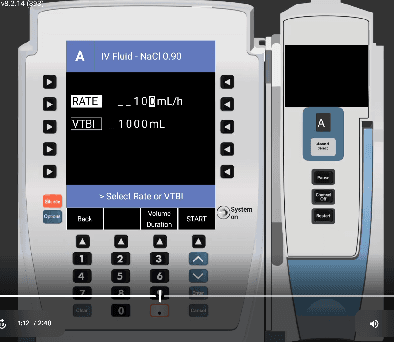
Enter Rate and VTBI
Set the infusion parameters:
- RATE — the delivery speed in mL/h (e.g., 100 mL/h)
- VTBI — Volume To Be Infused in mL (e.g., 1000 mL)
Use the number keypad to enter values. Select Rate or VTBI to toggle between fields.
Press START
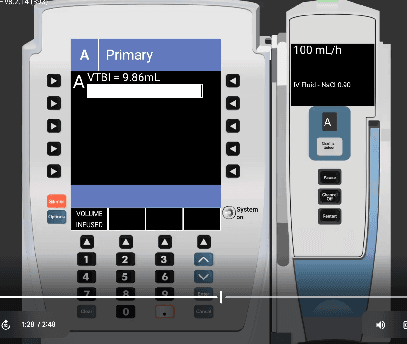
Once rate and VTBI are set, press START to begin the infusion. The pump transitions to the running screen.
Running State
When the infusion is active, the Alaris displays the running status with:
- Current rate (e.g., 100 mL/h)
- Drug name (e.g., IV Fluid - NaCl 0.90)
- VTBI remaining
- Volume infused
The right panel shows the channel status indicator.
Secondary Infusion
From the running screen, access the Secondary option via the bottom menu bar. The secondary infusion screen shows Rate, VTBI, and Time fields, along with BOLUS, Secondary, and START buttons.
Bolus
Access the BOLUS option from the bottom menu bar during an active infusion. Enter the bolus Rate and VTBI, then press START.