
Assignments
Group IV cases into assignments and track their status in the SimVS Portal.
Assignments package one or more saved IV cases into a named learning activity.
Before You Begin
- Create or confirm every required Case.
- Decide on a clear assignment name and whether the activity needs a due date.
- Remove any real patient information from case content before sharing the activity.
Find an Assignment
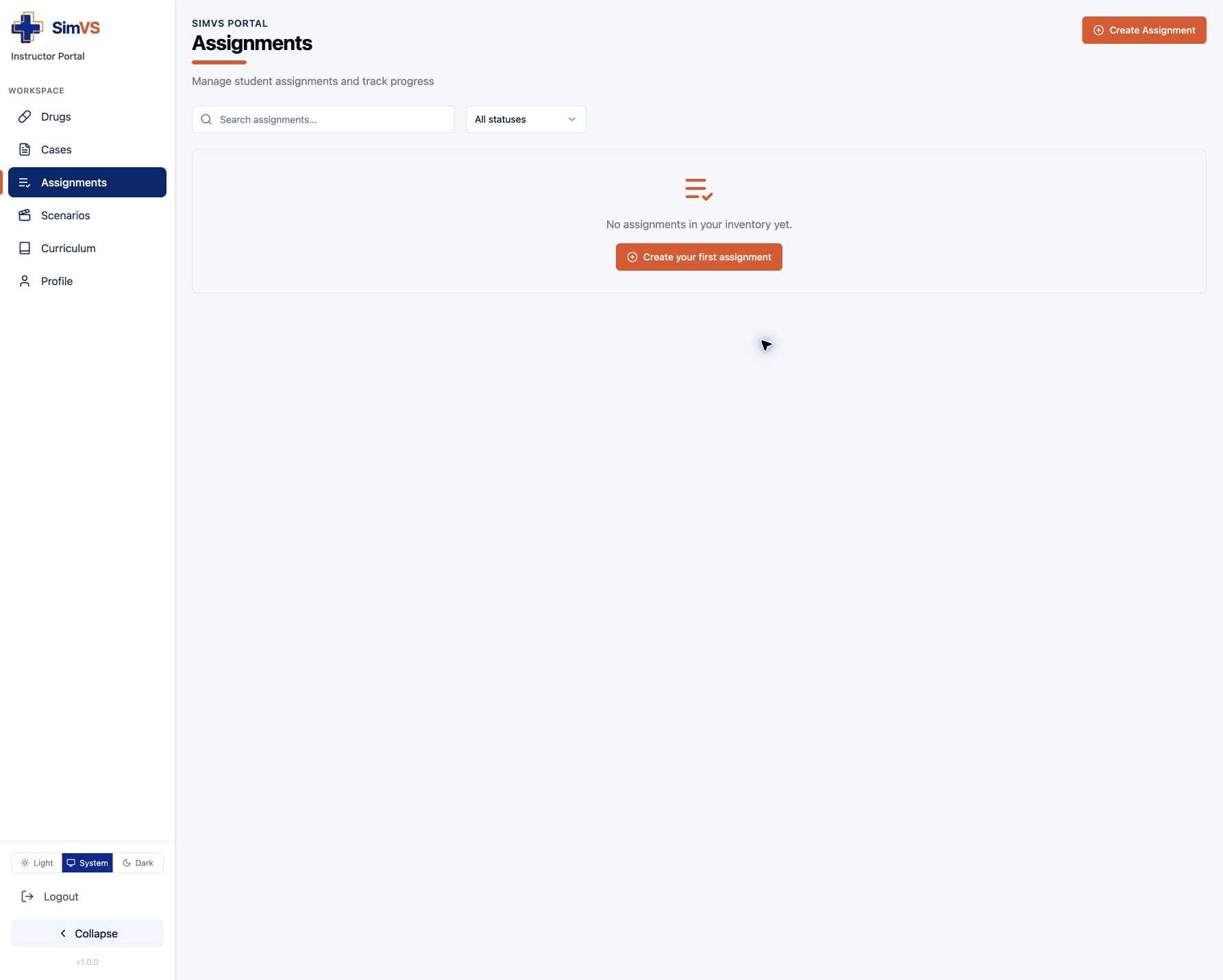
Open Assignments in the left sidebar. Use Search assignments... to find an activity by name and All statuses to filter the list by progress state.
Create an Assignment
Open the Form
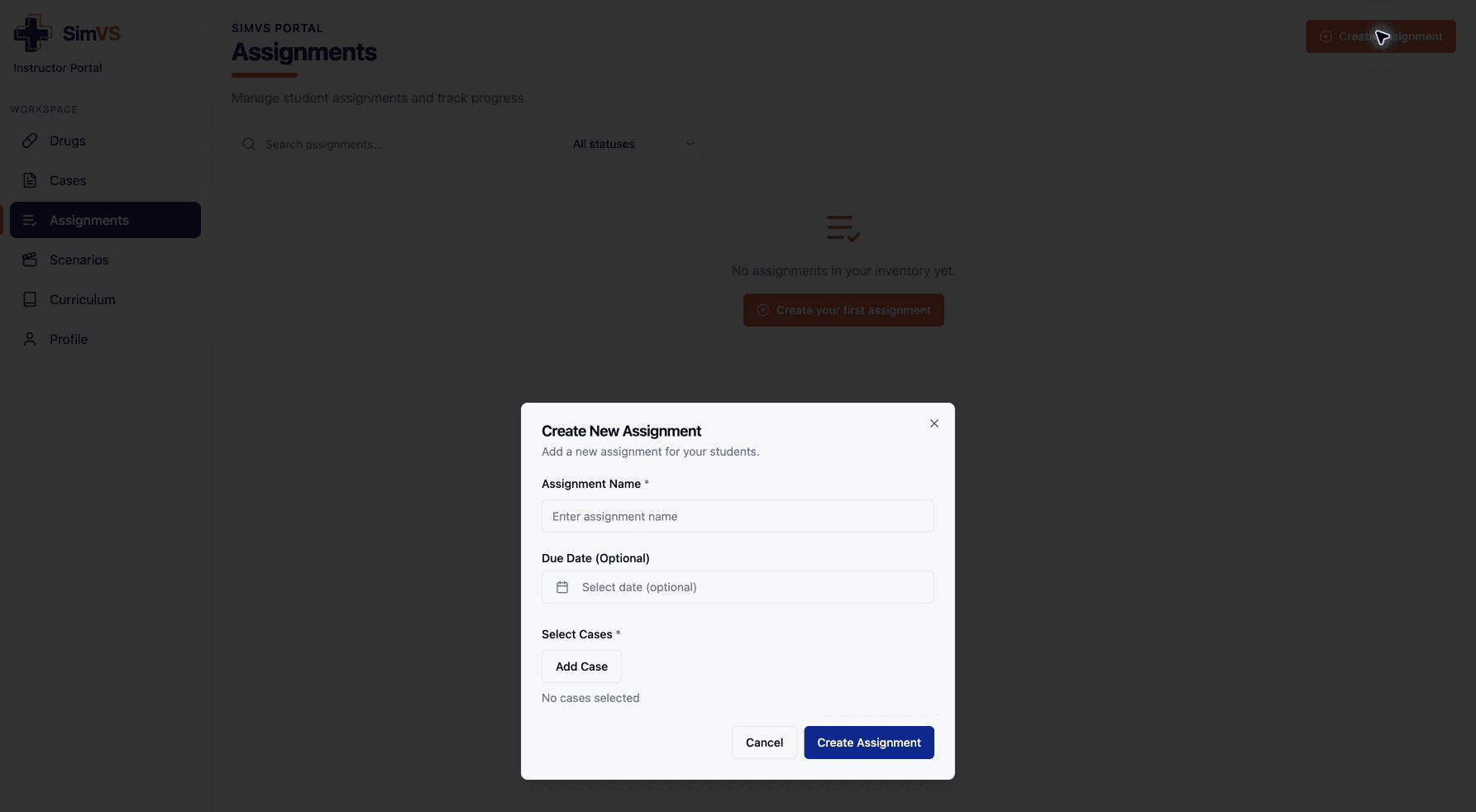
Select Create Assignment. If the list is empty, Create your first assignment opens the same form.
Name the Activity
Enter an Assignment Name that learners and instructors can distinguish from other activities.
Set a Due Date
Select Due Date (Optional) to choose a deadline, or leave it blank for an activity without a due date.
Add Cases
Select Add Case to reveal the available cases. Choose each case that belongs in the activity. The selected-case area updates as cases are added.
Create the Assignment
Review the name, due date, and selected cases, then select Create Assignment. The new activity should appear in the Assignments list.
Track and Manage Assignments
Return to Assignments to search for the activity and use the status filter to narrow the list. Open an assignment to review the information and actions available for that record.
Only edit or remove assignments created by your organization. Before changing an active assignment, confirm whether learners have already begun the work.
Troubleshooting
- No cases are available: Create and save a case first, then reopen Add Case.
- Create Assignment is unavailable: Enter the required name and select at least one case.
- Progress has not updated: Refresh the page and confirm that the learner used the account and activity your organization assigned.