
Profile
Review account information and licenses in the SimVS Portal.
The Profile workspace is a read-only reference for your instructor account and organization licenses. Use it to confirm which account is signed in, identify the user type, and review licensed Portal capabilities.
Review Account Information
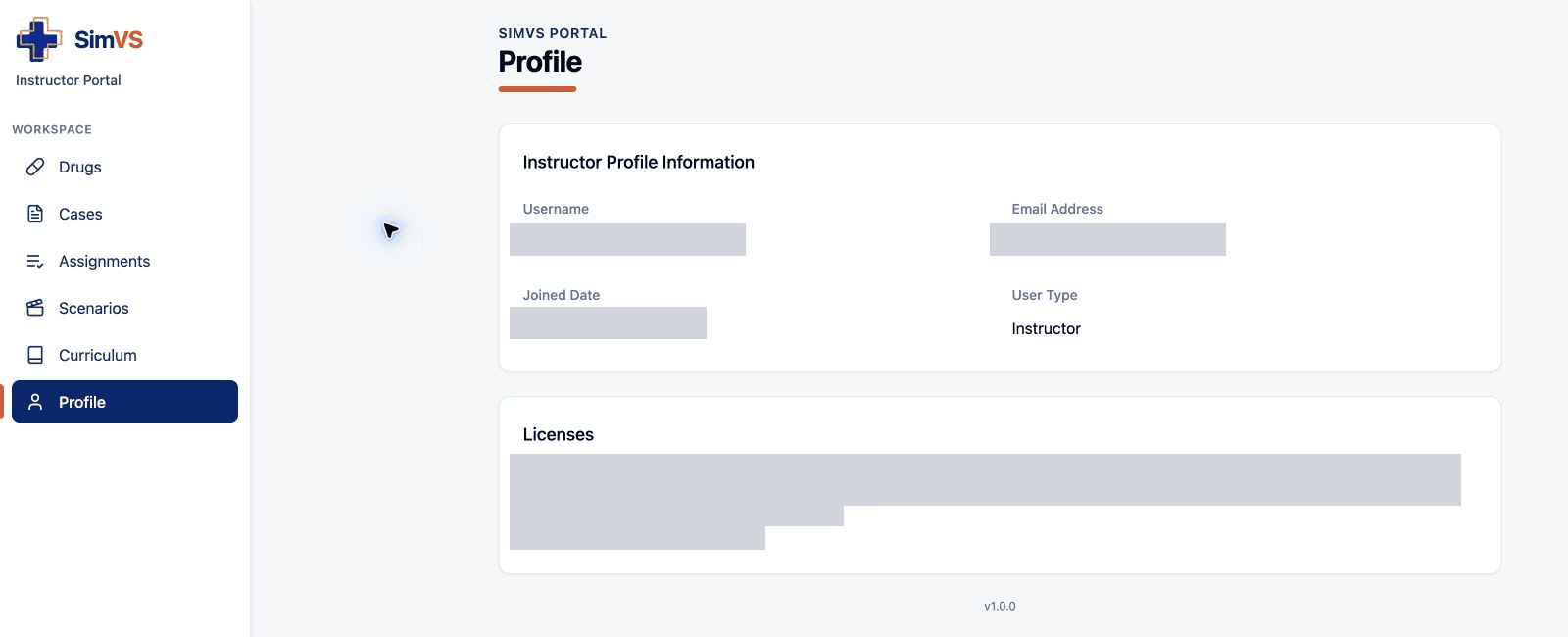
Open Profile in the left sidebar. Instructor Profile Information shows:
- Username — the account used to sign in.
- Email Address — the email or account identifier associated with the profile.
- Joined Date — when the Portal profile was created.
- User Type — the account role, such as Instructor.
If the account does not belong to the expected organization or role, log out and confirm the assigned instructor credentials before creating content.
Review Licenses
The Licenses card lists the products and capabilities available to the account. It also shows a license code and an expiration date.
Use the license names to understand why a product, curriculum set, or scenario type may be available or missing. Use the expiration date to confirm whether access may be nearing renewal.
Do not share the license code. Treat it as a sensitive account value. Do not include it in screenshots, public documents, chat messages, or ordinary support email. If SimVS Support needs to verify a license, follow the secure instructions they provide.
What Profile Does Not Change
The current Profile page is informational. It does not provide controls to edit the Username, Email Address, Joined Date, User Type, or license details.
For an account or license correction, contact your organization’s SimVS administrator or info@simvs.com. Describe the problem and organization, but do not send a password or visible license code.
Troubleshooting
- A feature is missing: Compare the expected product with the license names shown in Profile.
- A scenario type is disabled: The account may not have the associated license, or that type may not yet be enabled in the Portal.
- Curriculum is missing: Confirm that the relevant curriculum license is listed, then contact your administrator.
- The license is expired or close to expiration: Ask the organization’s license owner to contact SimVS.
- The account information is wrong: Log out and verify the assigned instructor account. If it remains wrong, contact support.