
Scenarios
Find, copy, create, edit, and use simulation scenarios from the SimVS Portal.
The Scenarios workspace contains built-in SimVS scenarios and scenarios created by your organization. Use the Portal to prepare scenarios from a web browser, then open the Server library on a supported instructor device.
Find the Right Scenario
Open Scenarios in the left sidebar. The table shows the scenario name, type, patient count when applicable, system status, and available actions.
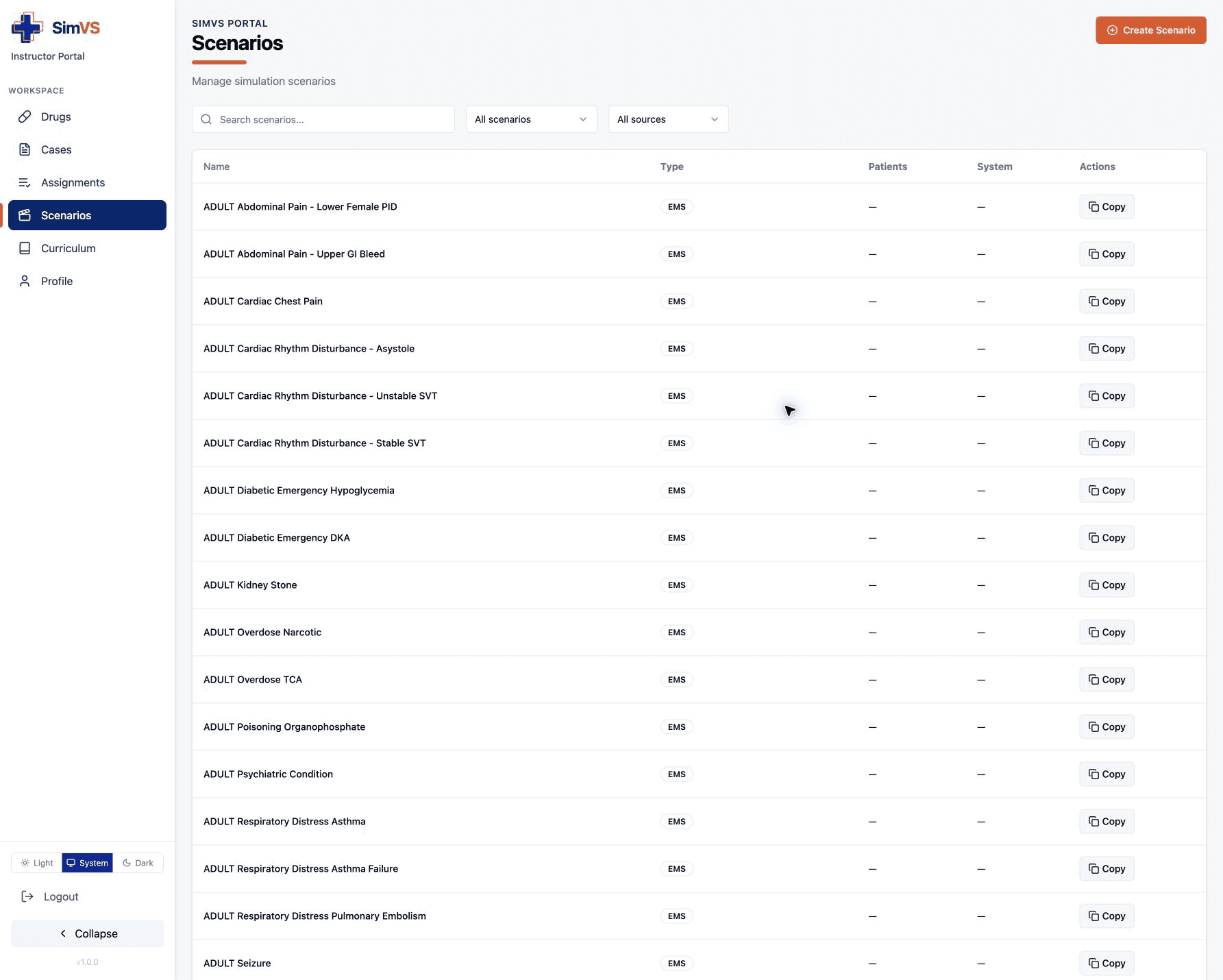
Use the controls above the table:
- Search scenarios... — search by scenario name.
- All scenarios — show every scenario, or narrow the list to Single Patient or Multi Patient.
- All sources — show every available source, Mine only, or Mine + system.
Built-in content commonly shows Copy as its available action. Copying lets you adapt a system scenario without overwriting the source.
Create a Scenario
Select Create Scenario
Select Create Scenario, then choose a scenario type. Selectable types include EMS, Nursing, Respiratory, and Multi-Patient.
AED, Respiratory Revel, Respiratory Military, OB, and Veterinary are visible but disabled. Availability may change with your organization’s licenses and future Portal updates.
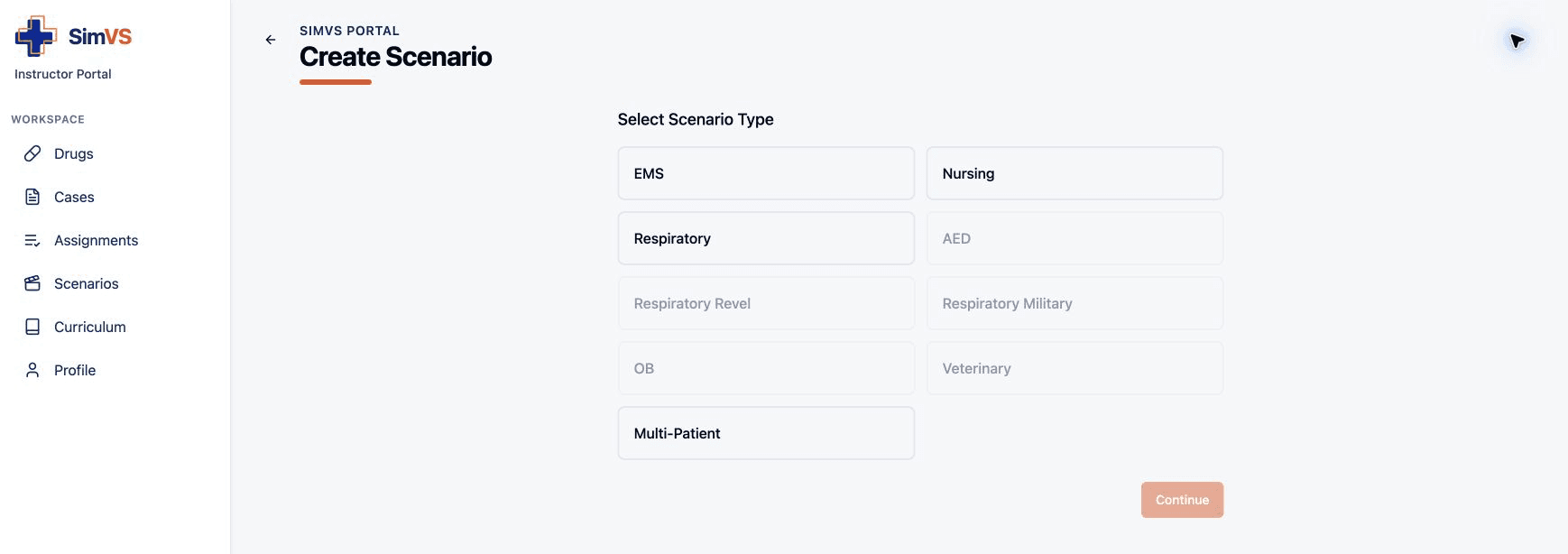
Select an available type, then select Continue.
Name and Organize the Scenario
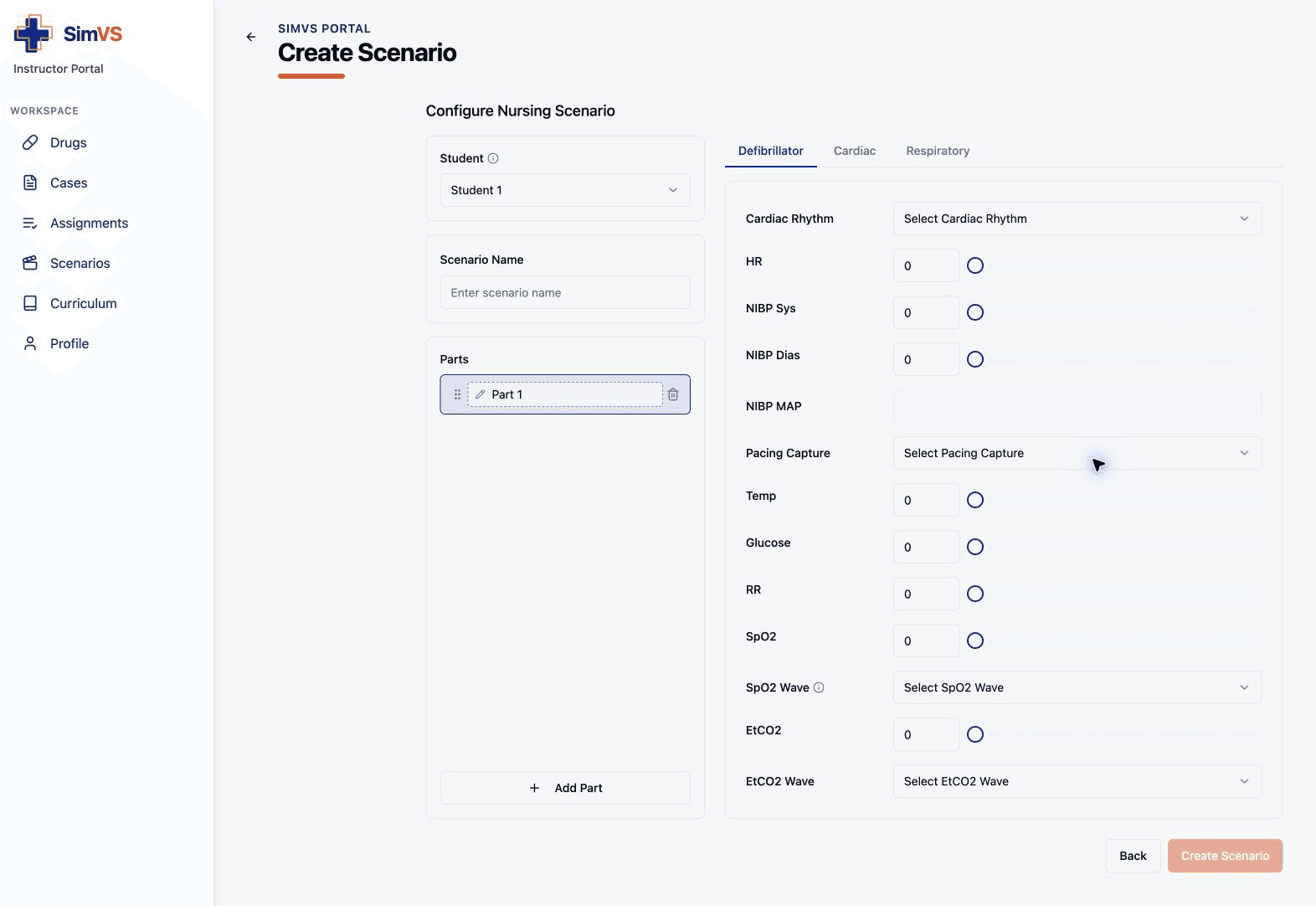
Choose the target Student when that control appears, enter a distinct Scenario Name, and name the first part. Select Add Part for each additional clinical state or stage in the scenario.
Configure Each Part
For Nursing scenarios, settings are grouped into Defibrillator, Cardiac, and Respiratory sections. The available parameters include:
- cardiac rhythm, heart rate, non-invasive blood pressure, and pacing capture;
- arterial blood pressure and central venous pressure where supported;
- temperature and glucose;
- respiratory rate, oxygen saturation, capnography, and waveform controls.
Move between parts and sections to set the intended values for each stage.
Review and Save
Confirm the scenario name, every part, and the student or patient mapping. Select Create Scenario when the required fields are complete.
The saved scenario should appear in the Scenarios list. Use Mine only to find instructor-owned scenarios more quickly.
Copy a Built-In Scenario
Find the Source
Search for a built-in scenario and use the scenario and source filters to narrow the list.
Select Copy
Select Copy in the source row. Treat the result as your organization’s editable version; do not expect changes to alter the built-in source.
Rename and Adapt
Give the copy a distinct name, review every part and parameter, then save it. Use Mine only to confirm the owned copy is present.
Edit or Delete an Owned Scenario
Use the actions shown for an instructor-owned scenario to open and edit it. Review every part before saving because a change can affect future sessions that use the scenario.
Delete only a scenario your organization created and no longer needs. Built-in content should be copied and adapted, not removed. If ownership is unclear, filter to Mine only or ask your SimVS administrator.
Open the Scenario on an Instructor Device
Portal scenarios are stored in the server library.
Connect the Instructor Device
Confirm that the instructor tablet or device is online and signed in with the appropriate SimVS account.
Open the Scenario Library
In the SimVS app, open the Scenario Library.
Select Server
Choose Server, not Local, then find the scenario by name.

A Portal-created scenario may not appear immediately on a disconnected device. Confirm internet access, refresh or reopen the Server library, and verify that the device uses the expected organization account and license.
Portal vs. Instructor-Device Editing
| Portal | Instructor device |
|---|---|
| Prepare from any supported browser | Prepare or adjust from the SimVS app |
| Search and filter server scenarios | Use Local and Server scenario libraries |
| Copy built-in content into an owned version | Make live adjustments during a session |
| Best for advance preparation | Best for in-room control |
For instructor-device creation and live changes, see Creating & Editing Scenarios.
Troubleshooting
- A type is disabled: Confirm the required product license in Profile. A visible disabled type is not currently selectable.
- Create Scenario is unavailable: Enter the required scenario name and complete any required student, patient, rhythm, or part fields.
- Your copy is hard to find: Select Mine only and search for the new name.
- The instructor device cannot find the scenario: Select Server, confirm internet access, and verify the device account.
- You are unsure whether deletion is safe: Keep the scenario and contact info@simvs.com.