
Access the SimVS Portal
Sign in to the SimVS Portal, understand the workspace, and choose the right feature guide.
Use the SimVS Portal from a supported web browser to prepare learning activities, manage instructor content, and open licensed curriculum. Your available features depend on your organization and licenses.
What You Will Need
- A computer with a current web browser and internet connection
- Your assigned instructor username and password
Treat your Portal credentials like any other work account. Do not share them or include them in screenshots, email, or support requests.
Sign In
Open the Login Page
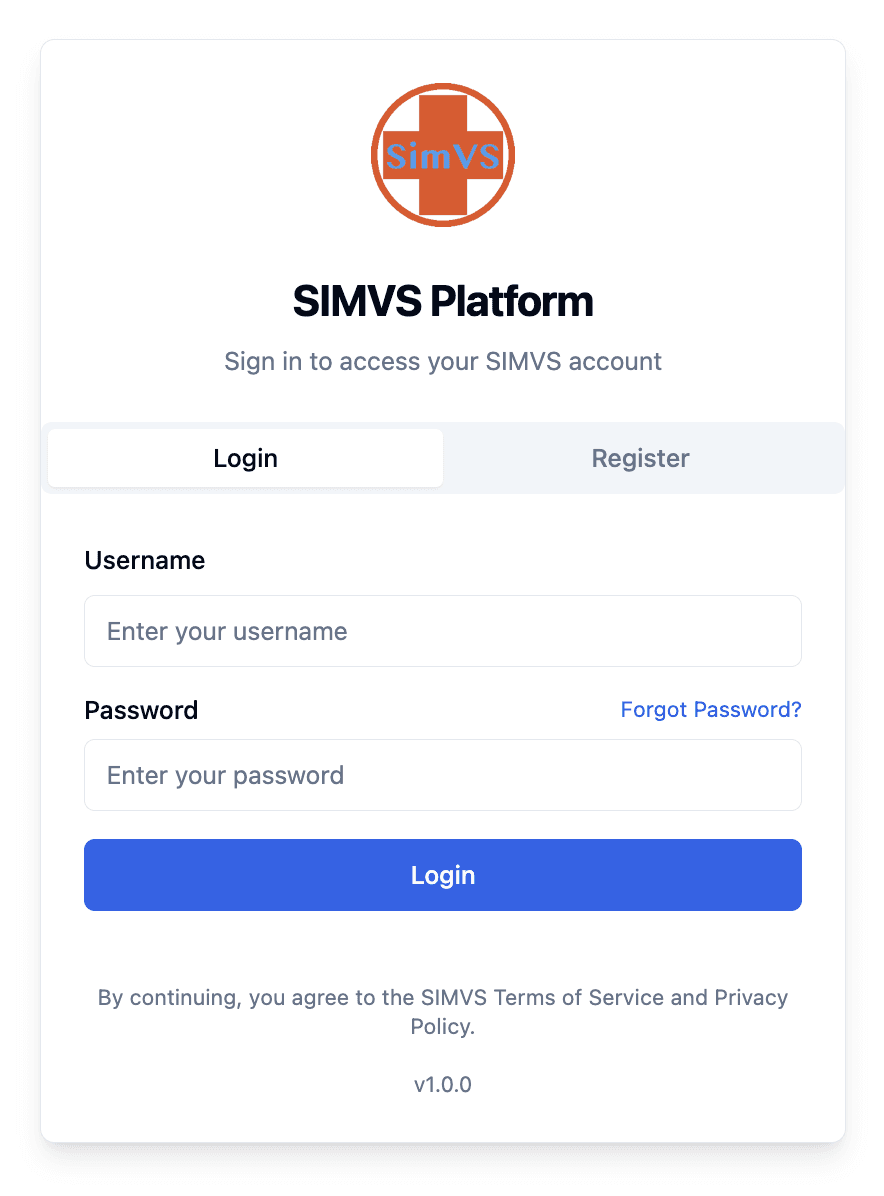
Go to https://portal.simvs.net/auth. The Login tab should be selected.
Enter Your Instructor Credentials
Enter your assigned instructor username and password, then select Login.
If you do not know which credentials to use, ask the SimVS administrator or nurse educator for your organization. Select Forgot Password? only when the username is tied to an email address you can access.
Confirm the Workspace Opens
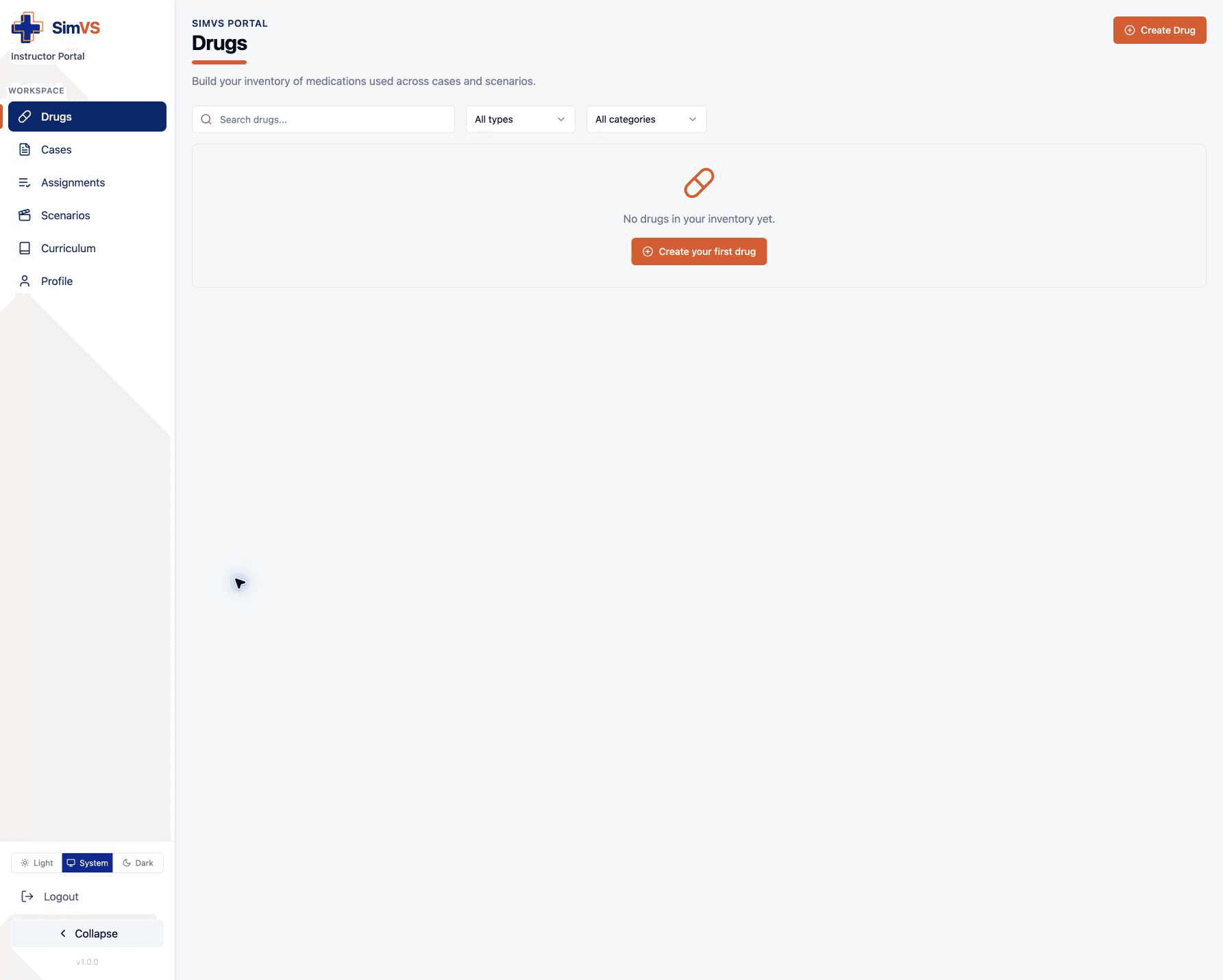
After a successful sign-in, the Portal opens to your instructor workspace. Use the left sidebar to move between features.
Understand the Navigation
The sidebar can include:
- Drugs — create and manage medications used in IV cases.
- Cases — combine drugs and pump settings into reusable IV activities.
- Assignments — group cases into learning activities and review assignment status.
- Scenarios — create and manage simulation scenarios for supported products.
- Curriculum — open faculty and student course materials included with eligible licenses.
- Profile — review account, organization, and license information.
Portal access is license-dependent. Curriculum, scenario types, and other capabilities may vary by organization. If an expected feature is missing, check Profile and confirm your organization’s licenses.
Choose Your Next Task
- For an IV activity, begin with Drugs, continue to Cases, and finish with Assignments.
- To prepare a simulation for a monitor or patient app, use Scenarios.
- To find teaching and learner materials, use Curriculum.
- To check account or license information, use Profile.
Troubleshooting Access
- Confirm the address is exactly
https://portal.simvs.net/auth. - Re-enter the username and password without extra spaces.
- Ask your organization’s SimVS administrator to confirm that your instructor account is active.
- If the page or a feature still does not open, contact SimVS at info@simvs.com. Include your organization name and a description of the issue, but never include your password or a visible license code.