
Cases
Create, review, edit, and manage reusable IV cases in the SimVS Portal.
A case combines a drug, pump compatibility, patient order, reference information, and calculation guidance into a reusable IV learning activity.
Before You Begin
- Create or confirm the required medication in Drugs.
- Gather the approved patient, order, monograph, and calculation details for the activity.
- Decide which simulated pumps learners may use.
Find and Review a Case
Open Cases in the left sidebar. Search by case information, use All pumps to filter by compatible pump, or select a column heading to sort the table.

Select a row to open the case detail. The detail view is organized into Case Info, Order, Monograph, and Calculations tabs.
Create a Case
Start the Case
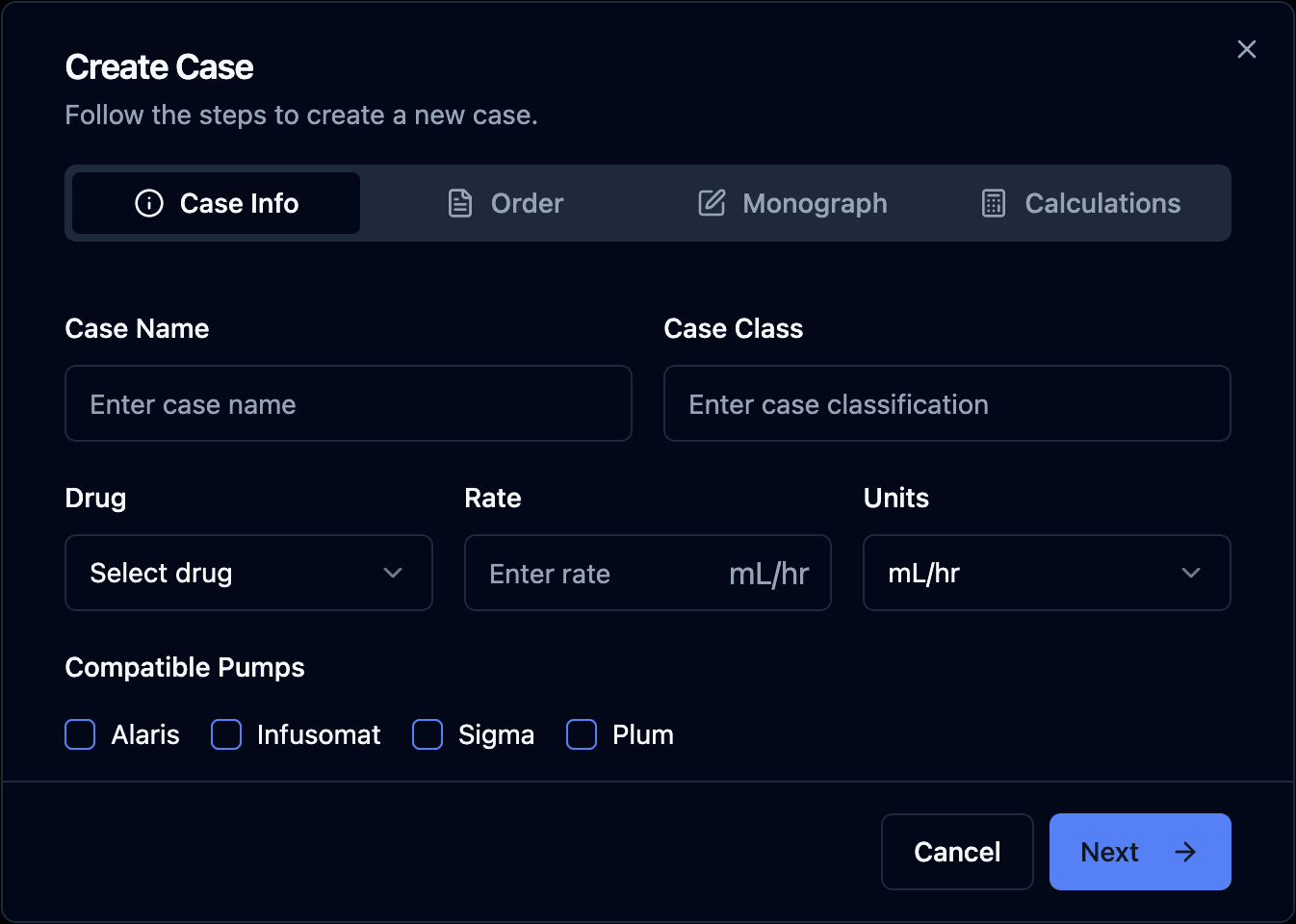
Select Create Case. The form uses four tabs that can be completed in order with Next.
Complete Case Info
Enter the Case Name and Case Class, choose a Drug, and enter the intended Rate and Units. Select every compatible pump:
- Alaris
- Infusomat
- Sigma
- Plum
Only selected pumps are shown as compatible with the saved case.
Complete the Order
In Order, add the patient information and medication order needed for the exercise. Available fields include patient name, date of birth, diagnosis, allergies, weight, medication directions, monitoring instructions, lab checks, duration, and prescriber information.
Use fictional simulation-patient information—never enter a real patient’s protected health information.
Add the Monograph
Use Monograph for the medication reference information learners need. The editor supports headings, emphasis, and lists. Keep the content aligned with your approved educational source.
Add Calculations
Use Calculations for the worked calculation, formula, or learner guidance associated with the case.
Save the Case
Review all four tabs, then select Save Case from the Calculations step. The case should appear in the table and become selectable when creating an assignment.
Edit or Delete a Case
Select a case row, then choose Edit Case. Move between the same four tabs and save the updated record. The edit form also offers Delete.
Delete is a destructive action. Confirm that the case is instructor-owned and is not needed by an assignment before using it. System or shared cases may be part of a standard learning package even when an edit control is visible.
Troubleshooting
- A drug is not available: Return to Drugs, save the medication, and refresh Cases.
- A pump is missing from the case row: Edit the case and enable that pump under Compatible Pumps.
- A learner should not see real patient details: Replace them with a fictional simulation patient before saving.
- Changes are not visible: Close the detail view and use Refresh at the bottom of the Cases page.
Next Step
Use the case in an Assignment.