
Media & Folders
Send 12-lead EKGs to students, manage media folders, and upload custom images.
The SimVS Hospital Series includes a media system for sharing 12-lead EKG images, patient charts, and custom media with student tablets during scenarios.
12-Lead EKG Library
The 12 Lead / Media button on the student display opens a repository of 12-lead EKG images. Instructors can broadcast these to student screens by selecting an image and choosing "send to student."
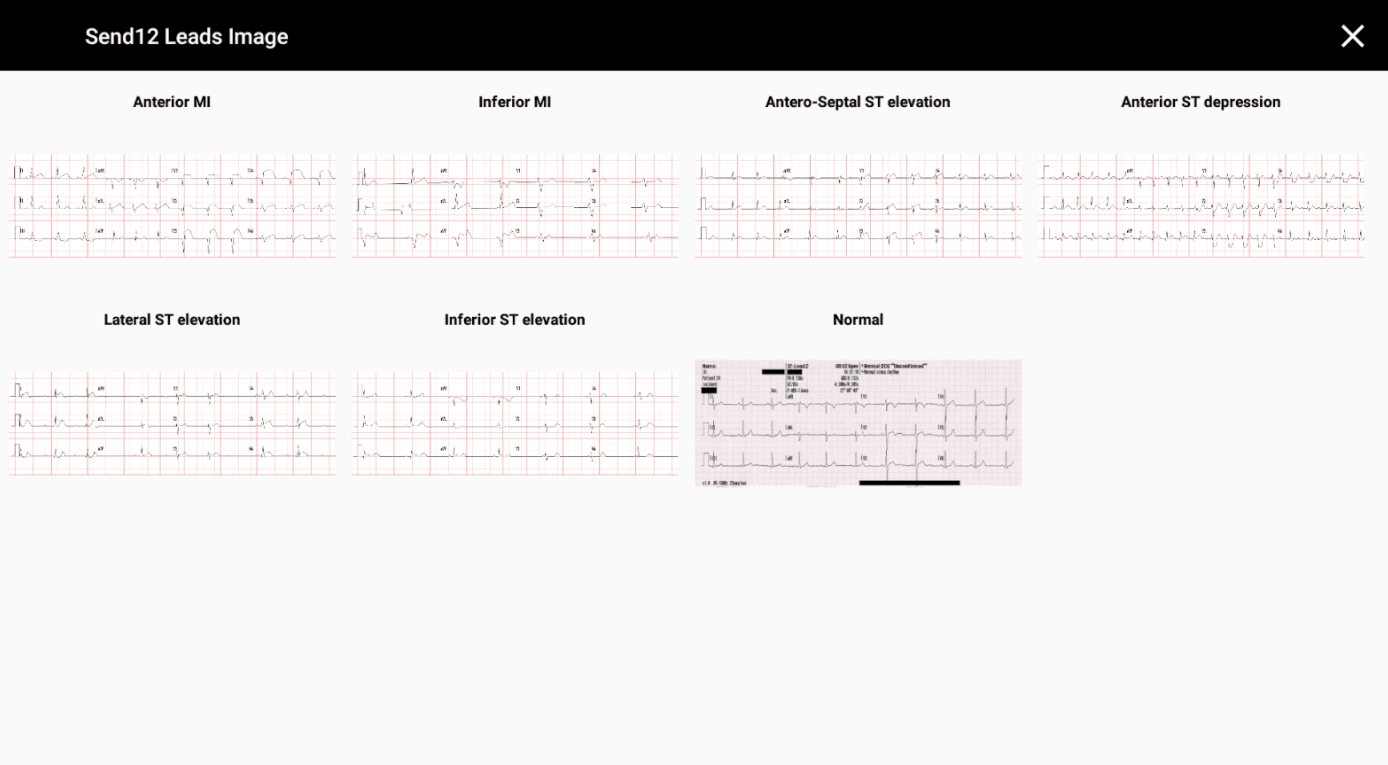
Available 12-Lead Images
| Image | Description |
|---|---|
| Anterior MI | Anterior myocardial infarction |
| Inferior MI | Inferior myocardial infarction |
| Antero-Septal ST elevation | ST elevation in antero-septal leads |
| Anterior ST depression | ST depression in anterior leads |
| Lateral ST elevation | ST elevation in lateral leads |
| Inferior ST elevation | ST elevation in inferior leads |
| Normal | Normal sinus rhythm 12-lead |
Managing Media
The instructor app provides a Manage Media screen for organizing media files into folders:
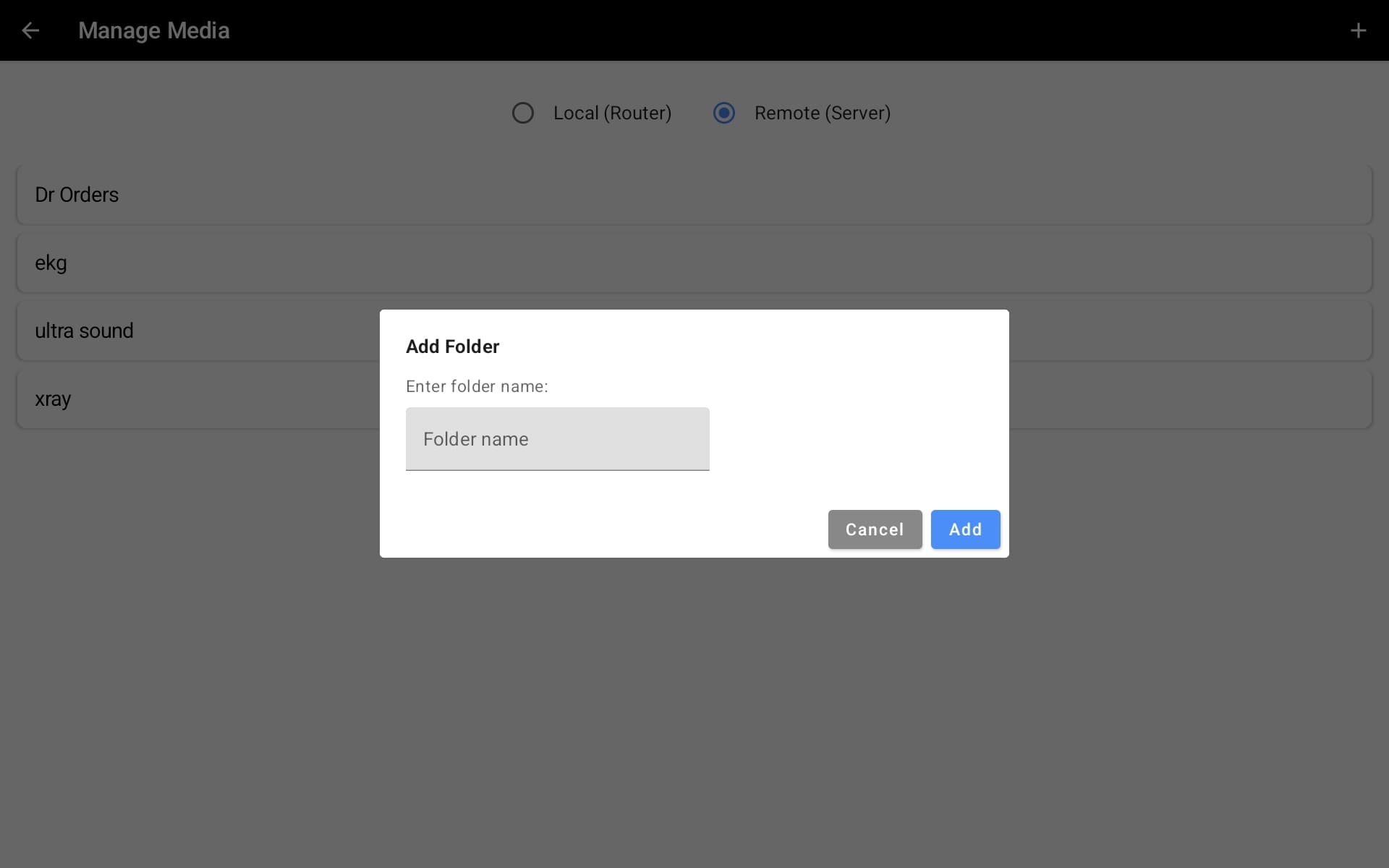
Creating Custom Folders
Users can create custom folders on their devices and customize them for individual scenarios. Any image can be added to the device and uploaded for use in a scenario.
Open Manage Media
From the instructor home screen, tap MANAGE MEDIA.
Create a New Folder
Select Add in the top-right corner, then create a folder and give it a descriptive name.
Add Images to the Folder
Open the folder and select Add. Browse the tablet's gallery to select images to add.
Caption Your Images
Give each image a descriptive caption so it's easy to identify during scenarios.
Adding Images to Your Tablet
To add files to the device for use in SimVS, images must first be saved to the tablet's gallery. Two easy methods:
- Take a photo with the tablet's camera — it will automatically appear in the gallery
- Screenshot an image from the web — the screenshot saves to the gallery and can then be uploaded to the app