
Trending, Email & Labs
Configure real-time parameter trending, send lab results, and manage email sharing in SimVS Hospital.
The trending feature allows instructors to set variable parameters that change over time within a scenario part. This creates realistic physiologic progression without needing to advance to a new part.
Trending Interface
How Trending Works
Open Trending
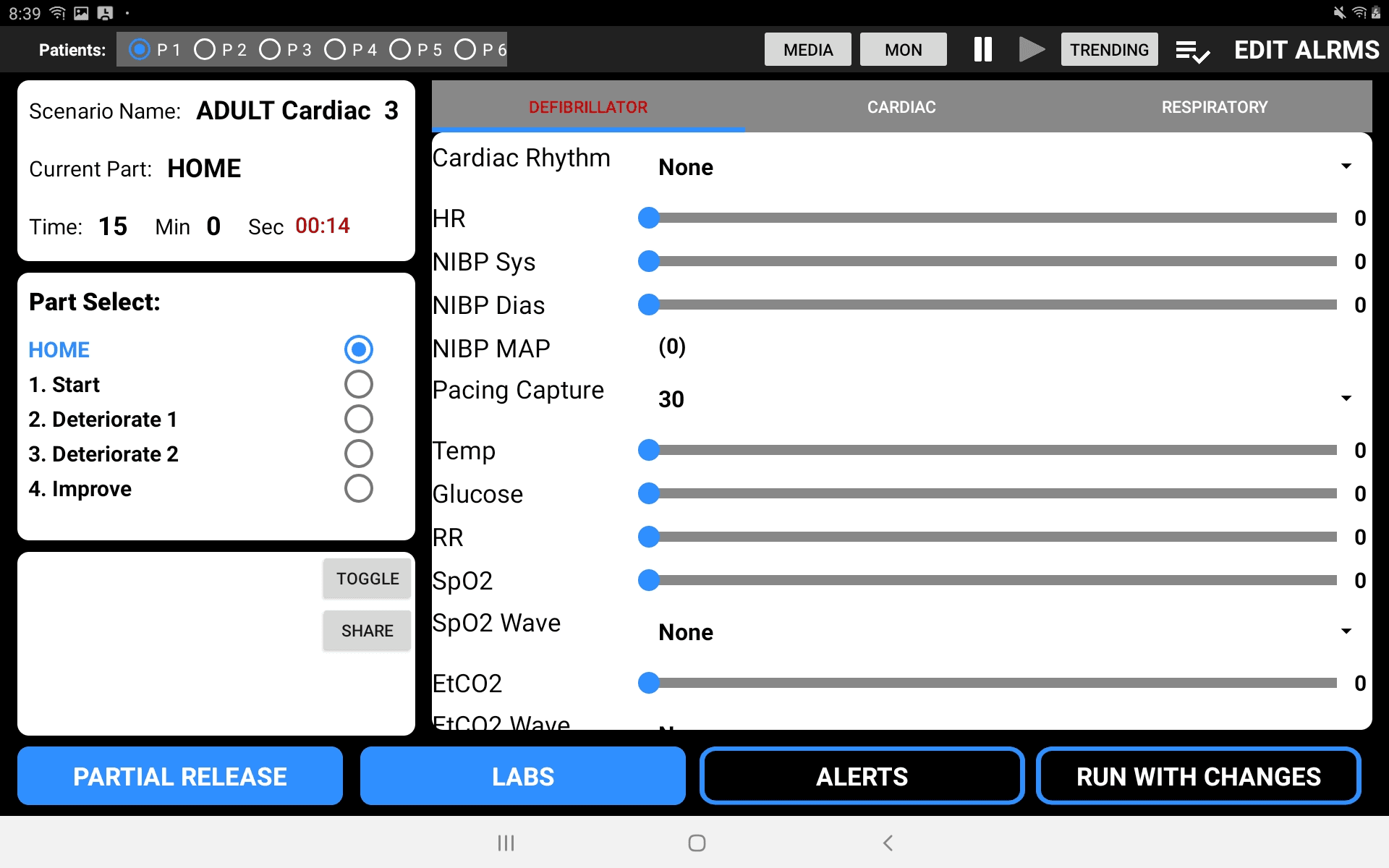
From the instructor Edit screen, tap the TRENDING button in the top navigation bar.
Set Target Values
For each parameter you want to trend, adjust the slider to the desired target value. Available parameters include:
- HR — Heart rate
- RR — Respiratory rate
- BP Systolic — Systolic blood pressure
- BP Diastolic — Diastolic blood pressure
- SpO2 — Oxygen saturation
- EtCO2 — End-tidal CO2
- Temp — Temperature
Set Trend Duration
For each parameter, adjust the Trend (sec) slider to set how long the change should take. This controls the speed of the transition from the current value to the target value.
Activate Trending
Once all changes are configured, press SET to begin trending. The parameters will gradually change from their current values to the target values over the specified duration.
Cancel if Needed
Press CANCEL TRENDING to stop all active trends and revert to current values.
Trending Indicators
When trending is active, the TRENDING button in the upper-right of the instructor screen flashes to indicate that parameter changes are in progress.
Labs
The LABS button on the instructor Edit screen allows sending lab results to the student. Lab values can be configured and sent during a scenario to simulate receiving lab results in a clinical setting.
Alerts
The ALERTS button provides access to alert configuration, allowing instructors to trigger specific alerts during a scenario for added realism.